

Overview
You can directly modify the private IP address of a Cloud Virtual Machine (CVM) instance in the Virtual Private Cloud in the console, or you can change the private IP address of an instance by changing the subnet to which the CVM instance belongs. This document guides you to modify the private IP address of a CVM instance in the Virtual Private Cloud in the Cloud Virtual Machine console.
For more information about how to change the subnet, see Change Instance Subnet.
Limitation Factor
- Changing the primary IP of the primary network interface will cause the associated Cloud Virtual Machine to automatically restart.
- The secondary network interface cannot modify the primary IP.
Directions
- Log in to the CVM Console.
- Select the region where the instance whose private IP address is to be modified belongs, and click ID/Host Name of the instance to enter the Instance Details page.
- On the Instance Details page, select the ENI tab and click Change Primary IP.
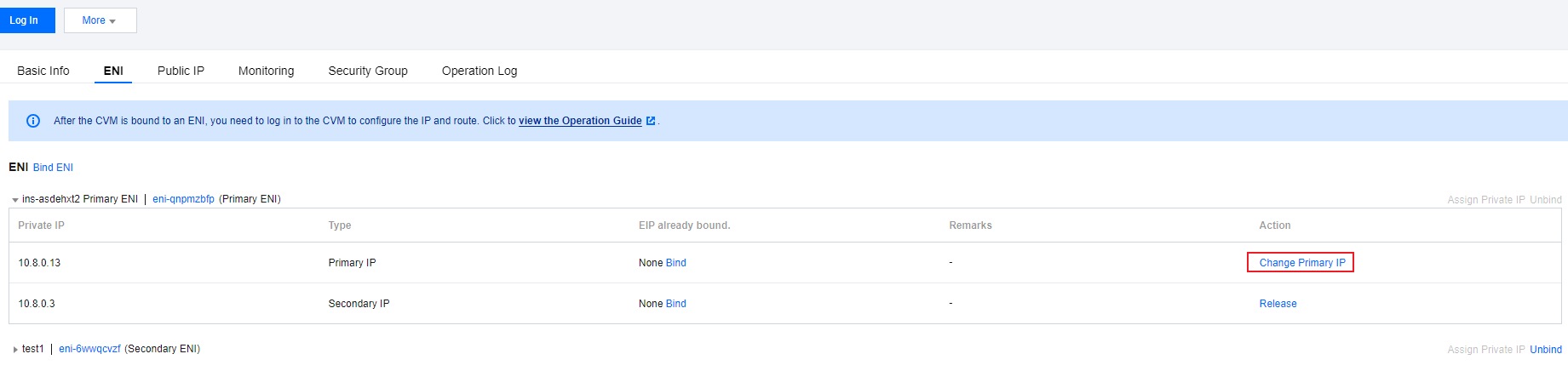
- In the pop-up Change Primary IP window, enter a new IP, click OK, and wait until the instance is restarted to take effect.Note:
Only the private IP address that belongs to the current subnet CIDR can be filled in.
