

Scenarios
Cloudbase-Init is a tool installed on the Windows operating system that enables users to automatically configure and initialize Windows virtual machines (VMs) in the cloud environment. In the cloud environment, users need to quickly create and deploy VMs. In this case, Cloudbase-Init can help users automatically complete the initialization tasks when creating VMs, such as network configuration, software installation, and script execution.
Taking the Windows Server 2022 64-bit operating system as an example, this document guides you to install Cloudbase-Init on the Windows operating system.
Preparing the Software
To install Cloudbase-Init, the following software is required:
| Software | Access Path | Description |
|---|---|---|
| CloudbaseInitSetup_X_X_XX_xXX.msi | Download the corresponding Cloudbase-Init installation package according to the bits of the operating systems actually used: Stable version: It is recommended. Windows 64-bit operating system Windows 32-bit operating system Beta version For more details, see the official website of Cloudbase-Init. |
Used to install Cloudbase-Init. |
| XXXCloudRun.ps1 | Used to modify the Cloudbase-Init configuration file. | |
| localscripts.py | Used to ensure that Cloudbase-Init can start normally. |
Operation Steps
Prerequisites: Images must be created by administrators.
Installing Cloudbase-Init
Download CloudbaseInitSetup_X_X_XX_xXX.msi to your server. On the operating system interface, double-click it to open the Cloudbase-Init installation package.
In the pop-up security warning dialog box, click Run and enter the Cloudbase-Init installation interface.
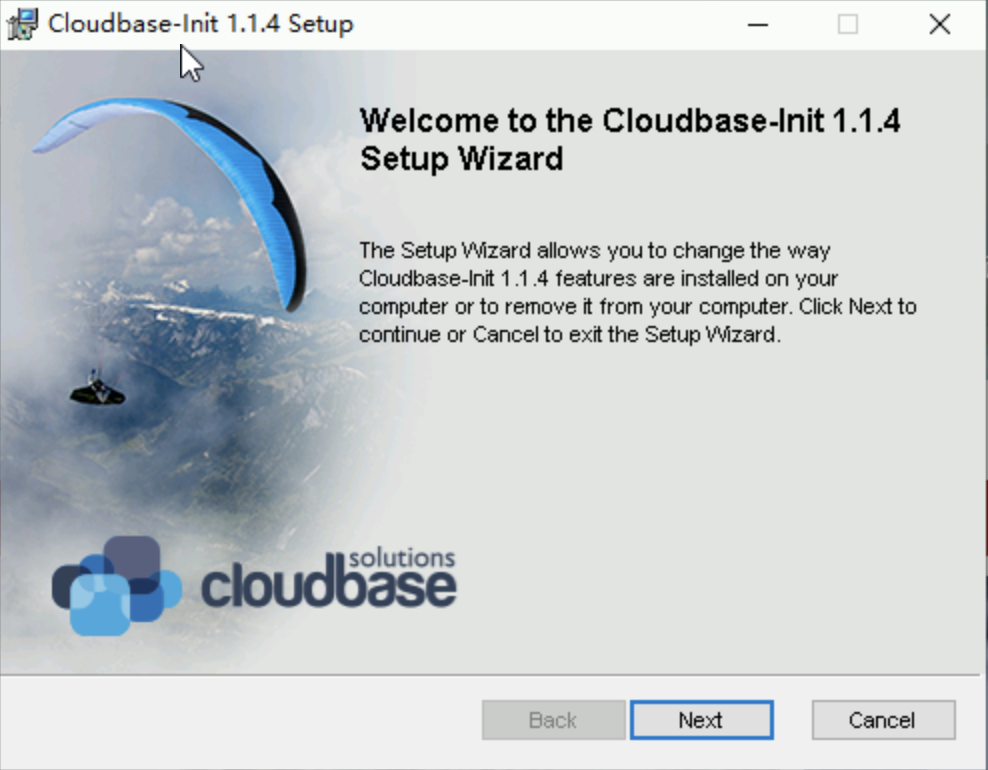
Click Next.
Select the option I accept the terms in the License Agreement, and click Next twice.
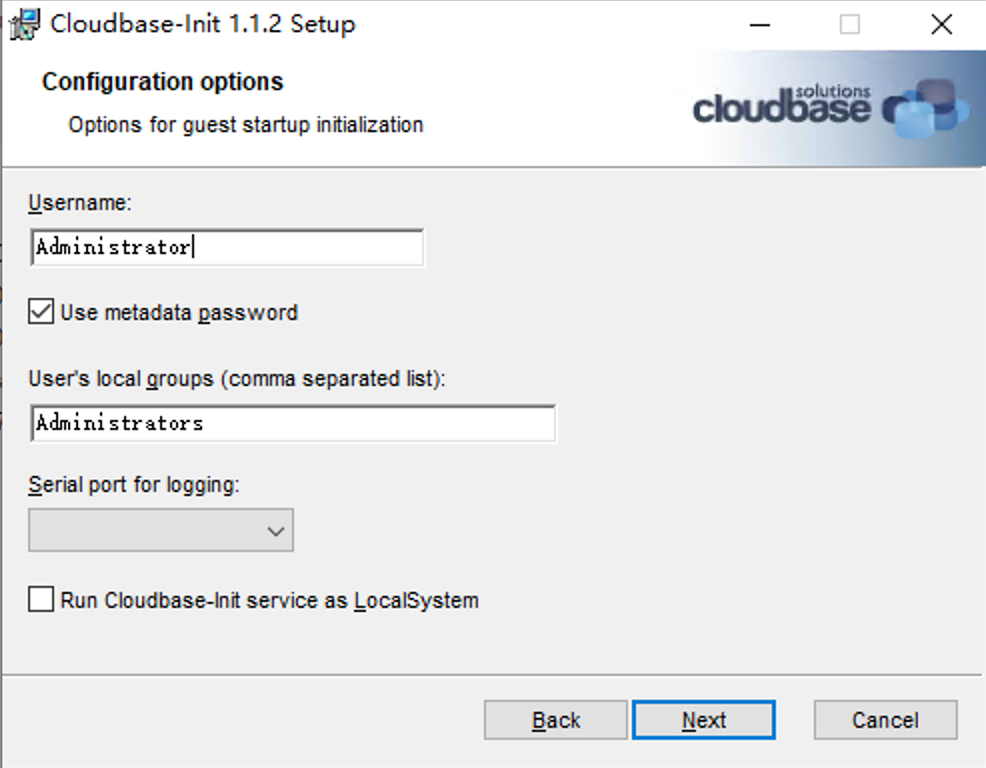
On the Configuration options interface, set Serial port for logging to COM1 (ignore this step if this option is not available). Select Run Cloudbase-Init service as LocalSystem, and click Next.
Click Install to install Cloudbase-Init.
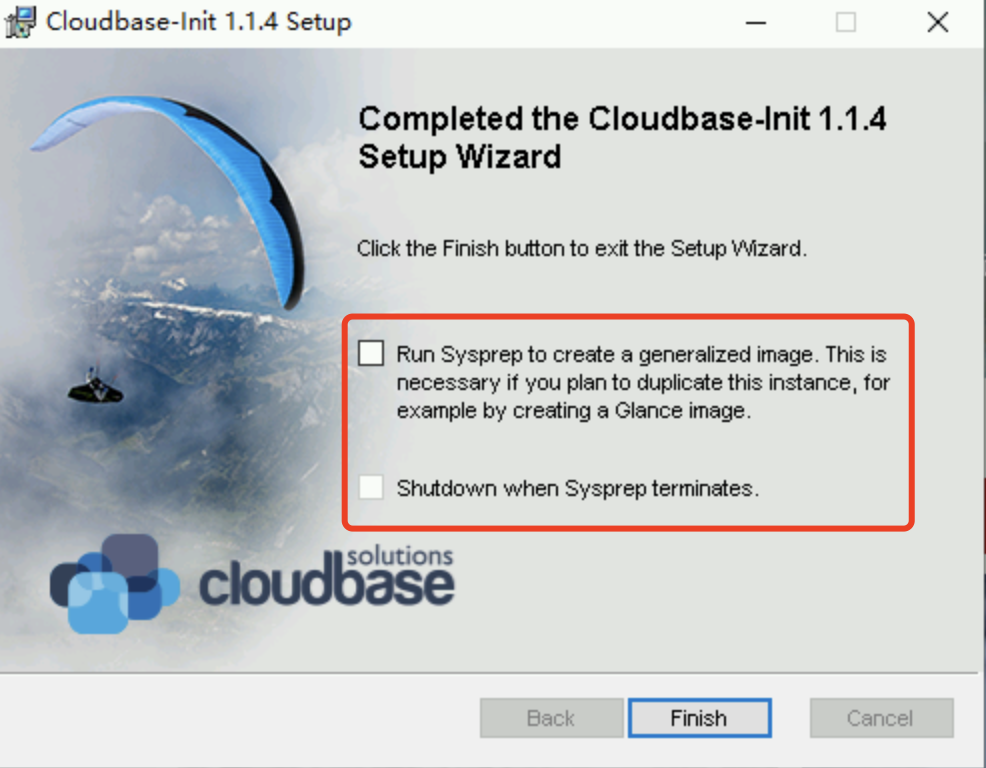
After Cloudbase-Init is installed, click Finish to close the Cloudbase-Init installation interface.
Note:
When closing the Cloudbase-Init installation interface, do not select any checkbox and do not run Sysprep.
Modifying the Cloudbase-Init configuration file
- Open the cloudbase-init.conf configuration file. The default path of cloudbase-init.conf configuration file is C:\Program Files\Cloudbase Solutions\Cloudbase-Init\conf.
- Replace the cloudbase-init.conf configuration file with the following content:
[DEFAULT]
username=Administrator
groups=Administrators
inject_user_password=true
config_drive_raw_hhd=true
config_drive_cdrom=true
config_drive_vfat=true
bsdtar_path=C:\Program Files\Cloudbase Solutions\Cloudbase-Init\bin\bsdtar.exe
mtools_path=C:\Program Files\Cloudbase Solutions\Cloudbase-Init\bin\

san_policy=OnlineAll

metadata_services=cloudbaseinit.metadata.services.configdrive.ConfigDriveService,cloudbaseinit.metadata.services.ec2service.EC2Service
#,cloudbaseinit.metadata.services.httpservice.HttpService
#,cloudbaseinit.metadata.services.maasservice.MaaSHttpService

metadata_base_url=http://169.254.0.23/
ec2_metadata_base_url=http://169.254.0.23/

retry_count=2
retry_count_interval=5

plugins=cloudbaseinit.plugins.windows.extendvolumes.ExtendVolumesPlugin,cloudbaseinit.plugins.common.networkconfig.NetworkConfigPlugin,cloudbaseinit.plugins.common.sethostname.SetHostNamePlugin,cloudbaseinit.plugins.common.setuserpassword.SetUserPasswordPlugin,cloudbaseinit.plugins.common.localscripts.LocalScriptsPlugin,cloudbaseinit.plugins.common.userdata.UserDataPlugin
verbose=true
debug=true
logdir=C:\Program Files\Cloudbase Solutions\Cloudbase-Init\log\
logfile=cloudbase-init.log
default_log_levels=comtypes=INFO,suds=INFO,iso8601=WARN,requests=WARN
#logging_serial_port_settings=COM1,115200,N,8
mtu_use_dhcp_config=true
ntp_use_dhcp_config=true
first_logon_behaviour=no
netbios_host_name_compatibility=false
allow_reboot=true
activate_windows=true
kms_host="kms.convergecloud.com"
local_scripts_path=C:\Program Files\Cloudbase Solutions\Cloudbase-Init\LocalScripts\

C:\powershell
PS C:\Set-ExecutionPolicy Unrestricted

volumes_to_extend=1,2,3
Download the XXXCloudRun.ps1 script and copy it to the path C:\Program Files\Cloudbase Solutions\Cloudbase-Init\LocalScripts.
3. Right-click the XXXCloudRun.ps1 script, click Properties, and check in the pop-up window whether the script has executable permissions.
If there is an Unblock option, select it and click OK to exit.
If there is no Unblock option, skip this step.
4. Replace the localscripts.py file in the path C:\Program Files\Cloudbase Solutions\Cloudbase-Init\Python\Lib\site-packages\cloudbaseinit\plugins\common with the localscripts.py file mentioned in the section Preparing the Software.