Overview
When you need to periodically delete specified objects to reduce costs, you can use the lifecycle management feature. COS will automatically delete the specified objects within the specified time according to the rules you set.
Note:
A lifecycle can be set to as long as 3,650 days.
Directions
Log in to the COS console.
In the left sidebar, click Bucket List to enter.
Find the bucket for which you want to enable the lifecycle function, click its bucket name, and go to the bucket file list page.
Select Basic Configuration > Lifecycle Management and click Add Rule.
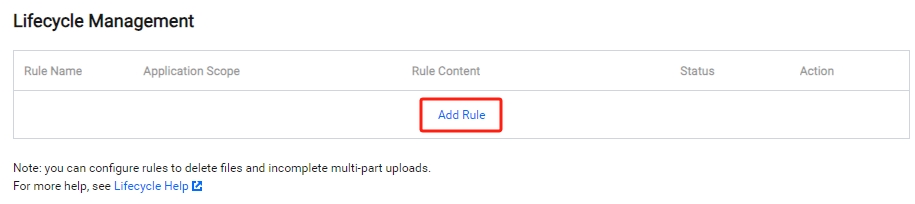
Add lifecycle rules based on your needs.
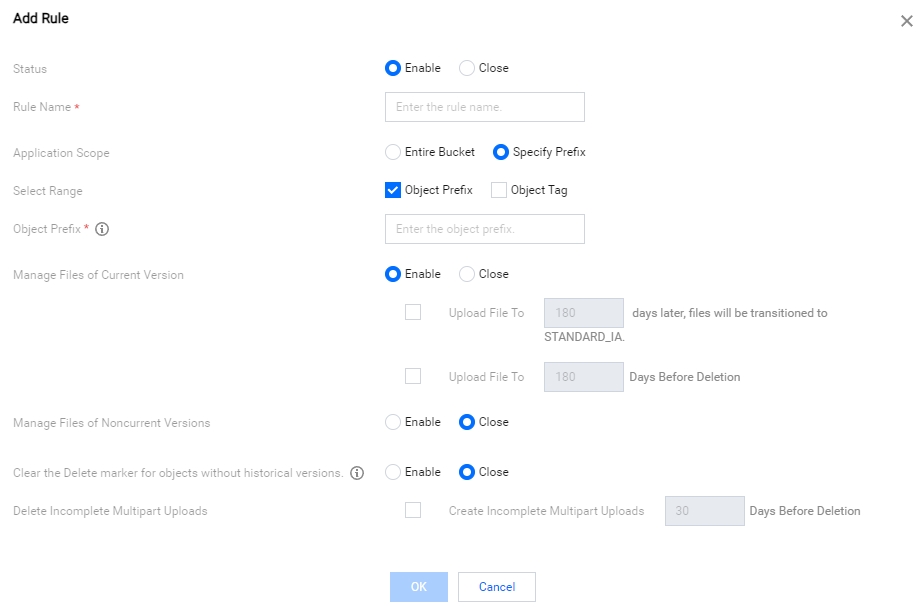
The configuration items are described as follows:Rule Name : Enter a name for your lifecycle rule.
Application Scope: This lifecycle rule can be applied to the entire bucket or objects in a specified range. The following ranges are currently supported:
Note:
Both an object prefix and an object tag can be specified.
For information about object keys (or prefixes), see Object Key in the object overview. For a description of the lifecycle configuration rules, see Rule Description documentation.
- Object Prefix: You can specify objects with the same file prefix to execute lifecycle rules, such as prefix/.
- Object Tag: You can specify objects with the same tag to execute lifecycle rules. You can specify multiple tags. Distinguish between uppercase and lowercase letters.
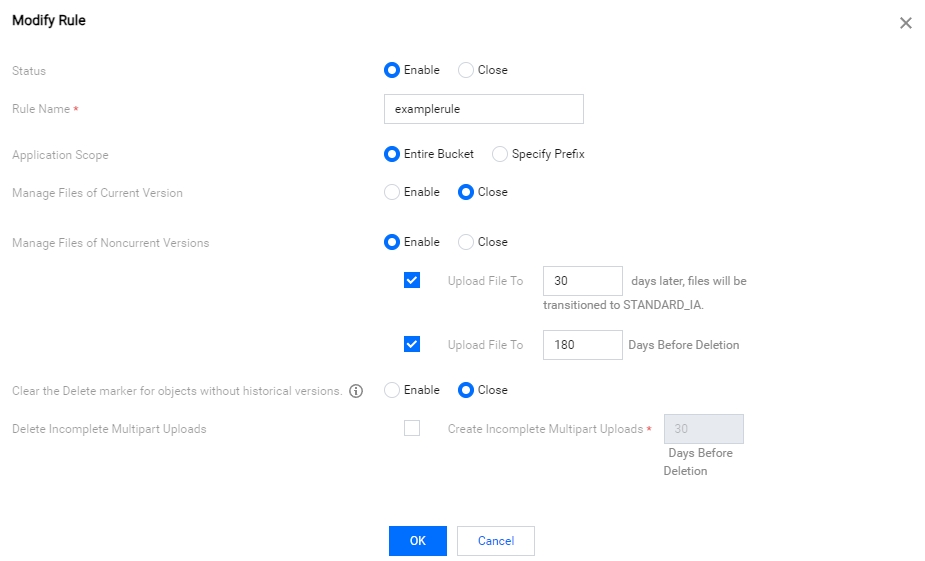
Manage Files of Current Version: You can set file settlement or delete the current version object by enabling the option to manage the current version object. Support objects in the bucket to be settled from standard storage to infrequent access storage and support the deletion of objects after expiration. The time is calculated based on the modification time of the file in the object storage. Modifying an object is equivalent to re-uploading the object.
Manage Files of Noncurrent Versions: Set it to transition files or delete objects of historical versions by enabling the option to manage objects of historical versions. If this option is disabled, we will only process the latest version of the file by default.
Clear the Delete marker for objects without historical versions: If the latest version of an object is a delete marker and all historical versions of the object are deleted, this delete marker will be deleted after this option is enabled. This option cannot be enabled at the same time as deletion after expiration in Manage the Current Version File.
Delete Incomplete Multipart Uploads: When uploading a file, the upload fails due to various reasons, and only a part of it is transmitted. For such damaged files, you can set periodic deletion.
After configuring the lifecycle rules, click OK to see the lifecycle rules.
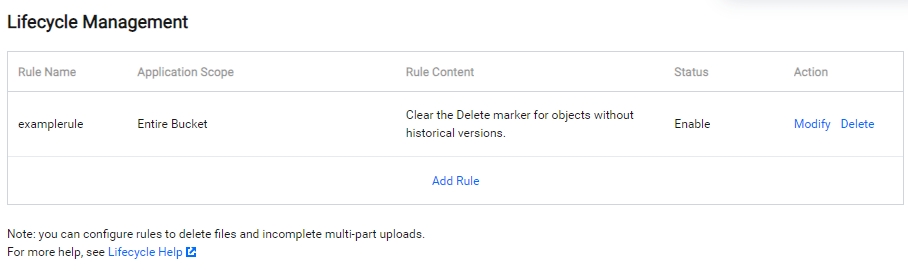
If you need to stop a lifecycle rule, click Modify, and change the status of the corresponding rule to Close or click Delete to directly delete the lifecycle rule.