

Overview
You can use the COS console to upload objects on the file list page of the bucket.
Prerequisites
Before uploading an object, ensure that you have created a bucket.
Directions
1. Entering the File List
- Log in to the COS console.
- In the left navigation tree, click Bucket List to go to the bucket list.
- Select the bucket where you want to store objects and go to the file list page.
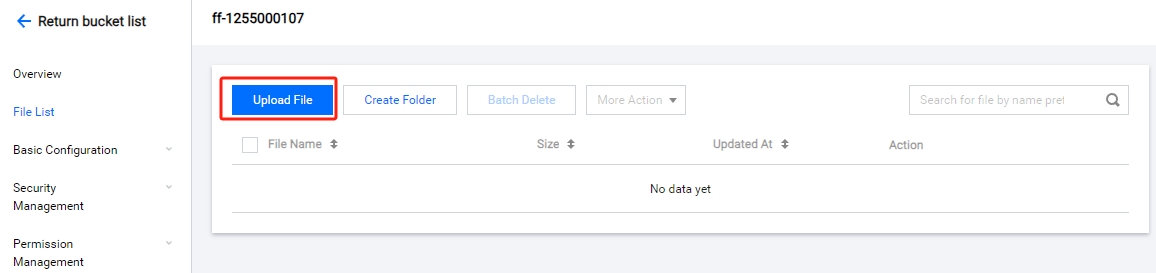
- Select File List, and click Upload File, as shown in the figure below.
2. Selecting the Upload Object
- In the Upload File dialog box, click Select File or Select Folder to upload single or multiple local files/folders.
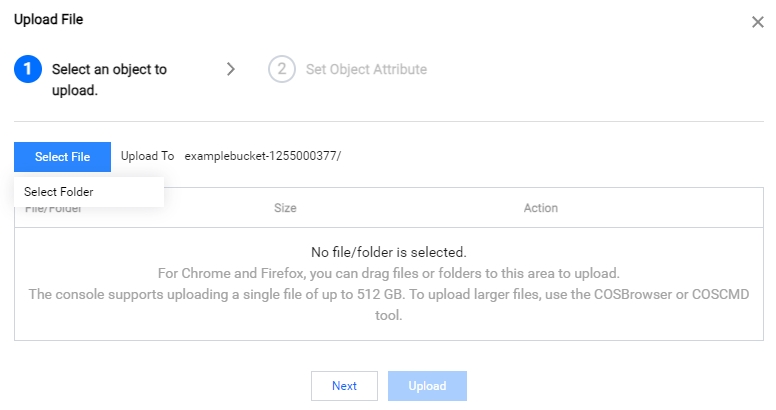
- Select the local object you want to upload.
- Click Upload to start uploading the file quickly, or click Next to set object attributes.
3. Setting Object Attributes (Optional)
Set access permission and metadata for the file to be uploaded, and click Upload. The description of the configurations is shown below:
- Storage type: You can set different storage types for objects according to your business scenarios. The default storage type is STANDARD.
- Access permission: You can set different access permissions for objects. The default access permission is Inherit (inheriting permissions of the bucket).
- Object tag: An object tag consists of a tag key (tagKey), an equal sign "=", and a tag value (tagValue). For example, group = IT. You can set, query, and delete tags for specified objects.
- Metadata: Metadata is a string sent by the server before it transmits the HTML data to the browser over the HTTP protocol. Metadata is also called an HTTP header. By modifying HTTP headers, you can change the response form of the page or pass on configuration information, for example, to modify the caching time. Modifying the HTTP headers of an object will not modify the object itself.

Note:
Some browsers do not support uploading multiple files. It is recommended that you use mainstream browsers, such as Internet Explorer 10 or later, Firefox, and Chrome.
4. Confirming that the Upload is Completed
- Click Upload. You can check the current upload progress in Task Completed in the top-right corner.
- After the upload is completed, you will see the uploaded objects in File List.