Feature Introduction
COS allows you to configure hotlink protection. You can set a blocklist and allowlist through hotlink protection in the console to ensure security.
How Does Hotlink Protection Work
Hotlink protection works by checking the Referer field in the request header:
- The Referer field is a part of the header. When a browser sends a request to a web server, the request usually carries the Referer field to tell the server from which page the request comes. In this way, the server can prohibit or allow websites from some sources to access resources.
- If you open the file link
https://examplebucket-1250000000.cos.city.yfm4.fsphere.cn/1.jpgdirectly in a browser, the Referer field is not carried in the request header.
For example, in the following figure,1.jpgis embedded inhttp://127.0.0.1/test/test.html, and the Referer field pointing to the access source is carried for access tohttps://127.0.0.1/test/test.html.
Hotlink Protection Case Analysis
User A uploads the image resource 1.jpg to COS, and the accessible link to the image is https://examplebucket-1250000000.cos.city.yfm4.fsphere.cn/1.jpg.
- User A embeds the image in his/her webpage
https://example.com/index.html, and the image is accessible. - User B sees the image on user A's webpage and decides to embed it in his/her webpage
https://b.com/test/test.html, and the image is properly displayed on user B's webpage.
In the above case, user A's image resource1.jpgwas hotlinked by user B. Resources in COS are being used by user B's webpage without being known by user A, and user A suffers from losses caused by extra traffic fees.
Solution
Based on the above hotlink protection case analysis, user A can prevent user B from hotlinking his/her images by setting hotlink protection in the following ways:
- Set a hotlink protection rule for bucket examplebucket-1250000000. There are two methods for preventing user B from hotlinking:
- Method 1: Configure a blocklist, set the domain name to
*.b.com, and save the configuration for it to take effect. - Method 2: Configure an allowlist, set the domain name to
*.example.com, and save the configuration for it to take effect.
- Method 1: Configure a blocklist, set the domain name to
- After hotlink protection is enabled:
- The image is displayed properly when
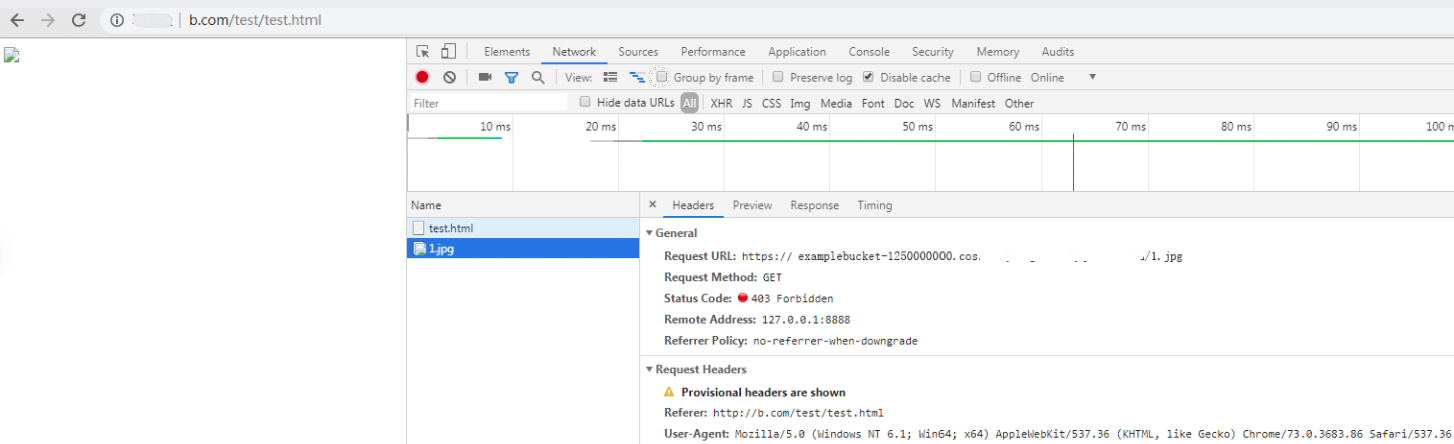
http://www.example.com/index.htmlis accessed. - The image cannot be displayed when
https://b.com/test/test.htmlis accessed, as shown below.
- The image is displayed properly when
Directions
Log in to the COS console and select Bucket List from the left sidebar to enter the bucket list page.
Select the bucket for which hotlink protection is configured and enter the file list page of the bucket.
In the left navigation tree, choose Security Management > Hotlink Protection Settings to enter the hotlink protection settings page.
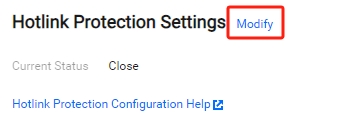
Click Modify to enter the editable status.
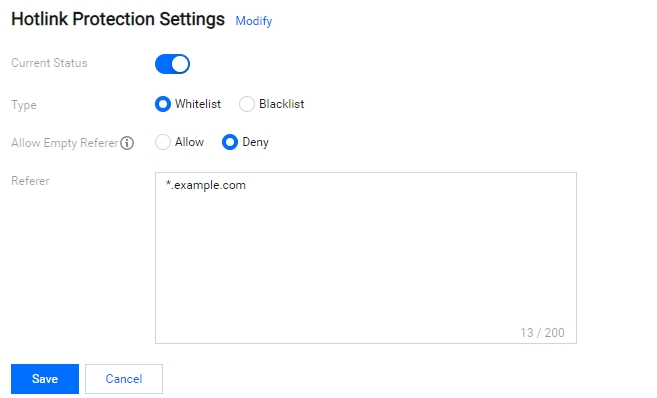
Enable hotlink protection and configure the list type and domain name. Method 2 is selected here. The detailed description is as follows:
- Type: There are two types of blocklist and allowlist:
- Blocklist: Prohibits domain names in the list to access the default access address of the bucket. If a domain name in the list accesses the default access address of the bucket, a 403 error will be returned.
- Allowlist: Prohibits domain names not in the list to access the default access address of the bucket. If a domain name not in the list accesses the default access address of the bucket, a 403 error will be returned.
- Referer: Setting the domain supports up to ten domain names and prefix matching, and addresses in the form of domain names, IP addresses, and wildcard characters
*are supported. One address occupies one line. If there are multiple addresses, change the line. Configuration rule descriptions and examples are as follows:- Domain names and IPs with ports are supported, such as
www.example.com:8080and10.10.10.10:8080. - When configure
*.example.com, you can hit address such asa.example.com/123and other address prefixed withexample.com. - When configure
example.com, you can hit address prefixed withhttps://example.comandhttp://example.com. - When configure
example.com, you can hit its port domainexample.com:8080. - When configure
example.com:8080, the domainexample.comwill not be hit. - When configure
*.example.com, you can limit its second-level and third-level domainexample.com,b.example.com, andabexample.com.Note
After the status of hotlink protection is set to enabled, enter the corresponding domain name.
- Domain names and IPs with ports are supported, such as
- Type: There are two types of blocklist and allowlist:
After the configuration is completed, click Save.