

Problem Description
This document introduces how to troubleshoot issues when you cannot connect to a Windows instance. It also explains the main reasons for login failures and guides you through troubleshooting, locating, and solving the problem.
Possible Reasons
The main reasons you may be unable to log in to a Windows instance include:
- Unable to log in due to password problems
- High bandwidth usage
- High server load
- Remote port configuration error
- Improper security group rules
- Firewall or security software causing login failures
- Authentication error with Remote Desktop connection
Troubleshooting
Log-in via VNC
When you cannot log in to a Windows instance through RDP or remote login software, use Converge Cloud VNC to log in and locate the cause of the fault.
- Log in to the CVM Console.
- On the instance management page, select the instance you want to log in to and click Log In.
- In the pop-up Log in to Windows Instance window, select Other methods (VNC) and click Log In Now.
If you forget your password during login, you can reset the instance password in the console. For specific operations, refer to Reset Instance Password.
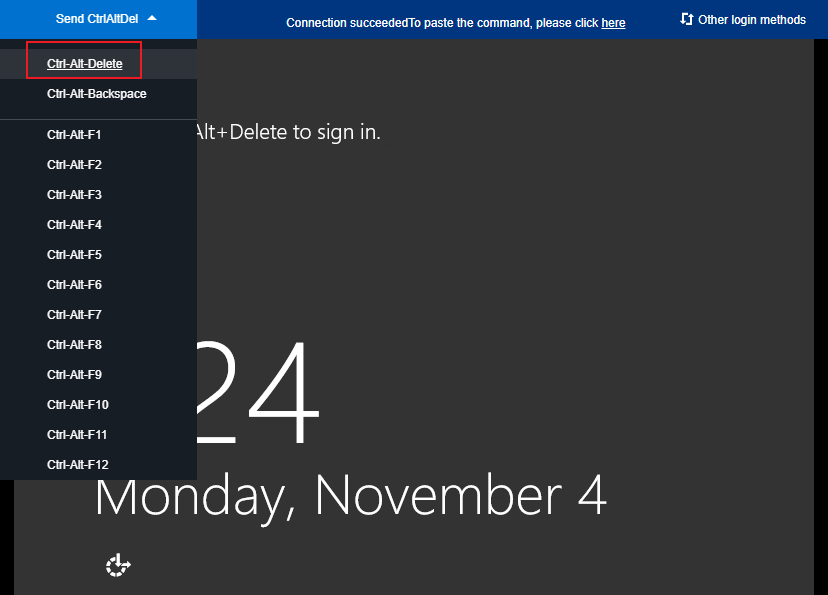
- In the login window, select Send Remote Command in the upper left corner and press Ctrl-Alt-Delete to enter the system login page.
Unable to log in due to password problem
Fault Phenomenon: Login fails due to incorrect password input, forgotten password, or failed password reset.
Solution: Reset the instance password in the console and restart the instance.
Directions: See Reset the Instance Password.
High bandwidth usage
Fault Phenomenon: Self-diagnosis indicates high bandwidth utilization.
Directions:
- Log in to the instance via VNC.
- See High Bandwidth Usage Prevents Log-in to track bandwidth usage and resolve issues.
High server load
Fault Phenomenon: High CPU load prevents remote access or causes slow login.
Possible Causes: Viruses, Trojans, third-party antivirus software, application anomalies, driver issues, or automatic updates can cause high CPU usage.
Directions:
- Log in via VNC.
- See Windows Instance: High CPU and Memory Usage Causes Log-in Failure to locate high-load processes in Task Manager.
Remote port configuration error
Fault Phenomenon: Remote connection unavailable, port not default or 3389 not open.
Localization Approach: Use ping to test the public IP and telnet to test port connectivity.
Directions: See Port Problem Leads to Failure of Remote Log-in.
Firewall or security software causing log-in failures
Fault Phenomenon: Login fails due to firewall settings or installed security software.
Positioning Ideas: Log in via VNC, check firewall status, and identify security software (e.g., 360, Safe Dog).
This operation may involve disabling the firewall. Ensure you have permission to perform this operation.
Directions (Example: Windows Server 2016):
- Log in via VNC.
- Press Win+R, open Control Panel.
- Click Windows Firewall.
- Select Enable or disable Windows Firewall.
- Turn off both Private and Public Network Settings, click OK.
- Restart the instance and test remote login.
Authentication error with Remote Desktop connection
Fault Phenomenon: Error messages such as:
- An authentication error has occurred. The feature supported by the client is not supported by the remote computer.
- An authentication error has occurred. The requested feature is not supported.
Cause: Microsoft’s March 2018 security update fixes a CredSSP vulnerability. Both client and server must install the update; otherwise, authentication may fail.
Processing Steps: Install the security update. For details, see Windows instance: Authentication Error.
Other Solutions
If the above steps do not resolve the issue:
- Save self-diagnosis results.
- Submit a ticket for technical support feedback.