

Windows Instance: Remote Desktop cannot connect to the remote computer
Last Updated At: 2026-08-14 08:08:00
Applicable Scenario
The following prompt may appear when using Windows Remote Connection to a Windows instance:
Remote Desktop cannot connect to the remote computer for one of the following reasons:
- Remote access to the server is not enabled
- The remote computer is turned off
- The remote computer is not available on the network
Make sure the remote computer is turned on, connected to the network, and remote access is enabled.
Possible Reasons
The reasons for the above prompts include (not limited to the following situations, please analyze according to the actual situation):
- The instance is in an abnormal running status.
- No public IP or public bandwidth is 0.
- The security group bound to the instance does not allow access to the remote log-in port (the default port is 3389).
- Remote Desktop Services is not started.
- Remote Desktop settings issues.
- Windows Firewall settings issues.
Troubleshooting Steps
Check if the Instance is Running
- Log in to the CVM console.
- On the instance management page, check whether the instance is in Running status.
- If yes, check whether the server has a public IP.
- If no, start the Windows instance.
Check Whether the Server Has a Public IP
Check whether the server has a public IP in the CVM console.
- If yes, check whether to purchase public network bandwidth.
- If no, apply for an Elastic IP and bind it.
Check Whether to Purchase Public Network Bandwidth
Check whether the public network bandwidth is 0 Mb (minimum 1 Mbps).
- If yes, adjust the network bandwidth to 1 Mbps or above.
- If no, please check whether the instance remote login port (3389) is open.
Check Whether the Instance Remote Log-in Port (3,389) is Open
- On the Instance Management page of the CVM console, click the instance ID/host name you want to log in to enter the instance details page.
- On the Security Group tab, check whether the instance's security group has access to the remote log-in interface (default remote desktop port: 3,389).
- If yes, please check the system settings of your Windows instance.
- If no, edit the corresponding security group rules to allow the traffic to pass. For operation instructions, see Adding Security Group Rules.
Check the System Settings of Your Windows Instance
Use VNC to log in to the instance and troubleshoot the system settings of the Windows instance. > Note: The following operations are based on the Windows Server 2012 operating system instance.
In the logged-in instance system, right-click
 , select Run, enter services.msc in Run, and press Enter to open the Services window.
Double-click to open the properties of "Remote Desktop Services" and check if the Remote Desktop service is running.
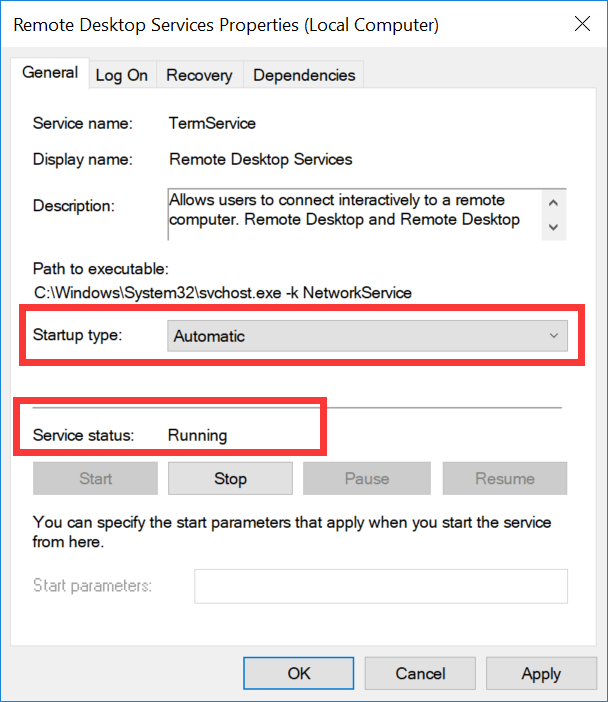
- If yes, proceed to step 4.
- If no, please set the Startup Type to Automatic and the Service Status to Running (that is, click Start to start the service).
Right click
, select Run, enter sysdm.cpl in Run, press Enter, and open the System Properties window.On the "Remote" tab, check if Remote Desktop is set to "Allow remote connections to this computer(L)".
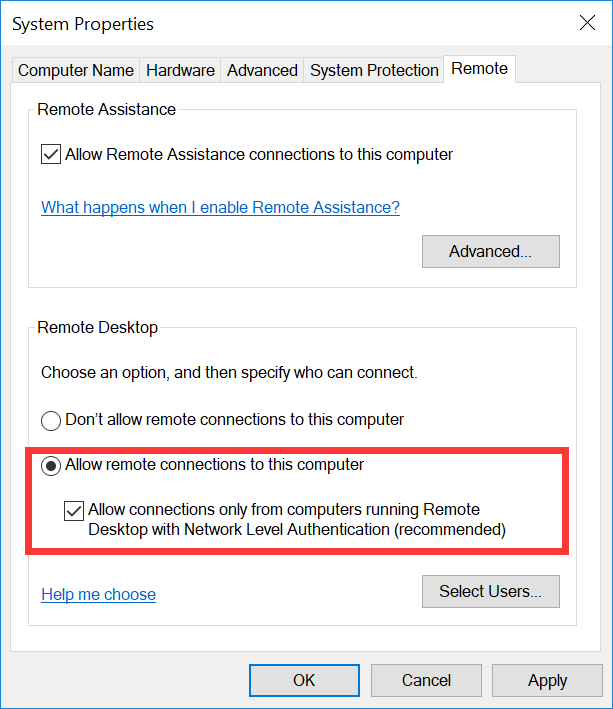
- If yes, proceed to step 6.
- If no, set Remote Desktop to Allow remote connections to this computer (L).
Click
and select Control Panel to open the Control Panel.In the Control Panel, select System and Security > Windows Firewall to open Windows Firewall.
In "Windows Firewall", check the status of the Windows Firewall.
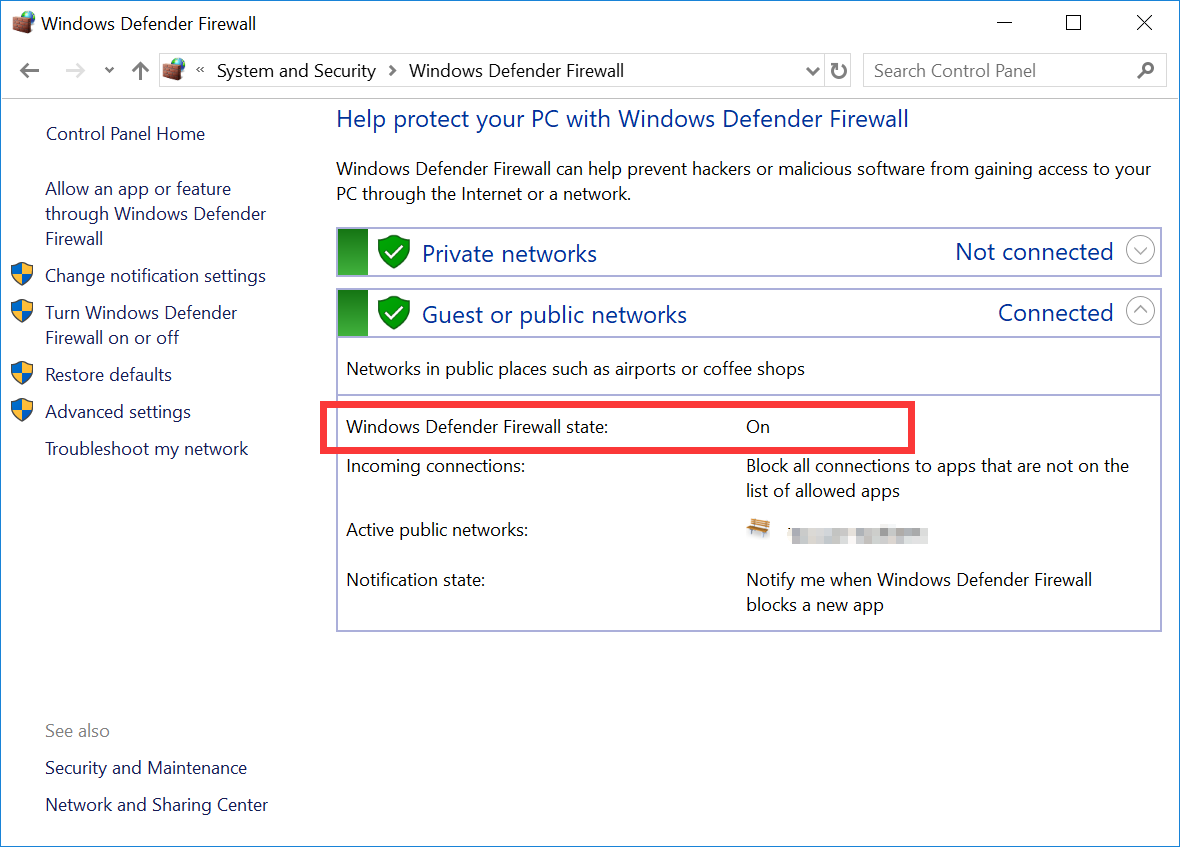
- If the status is Enabled, proceed to step 9.
- If the status is Disabled, submit a ticket for feedback.
In Windows Firewall, click Allow an App or allow access through Windows Firewall to open the Allowed Apps window.
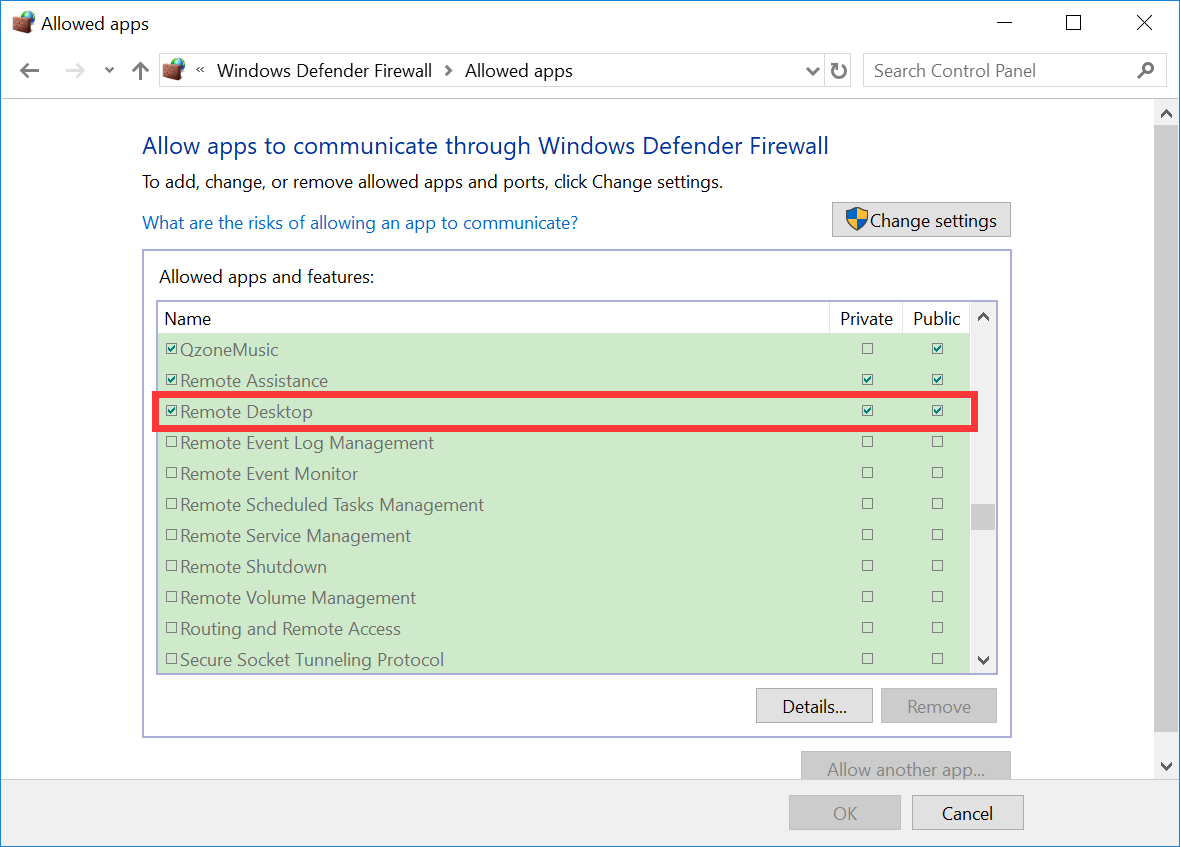
In the "Allowed Apps" window, check if "Remote Desktop" is checked under "Allowed Apps and Features (A)".
 , select Run, enter services.msc in Run, and press Enter to open the Services window.
- If yes, proceed to step 11.
- If no, please check Remote Desktop and enable Remote Desktop.
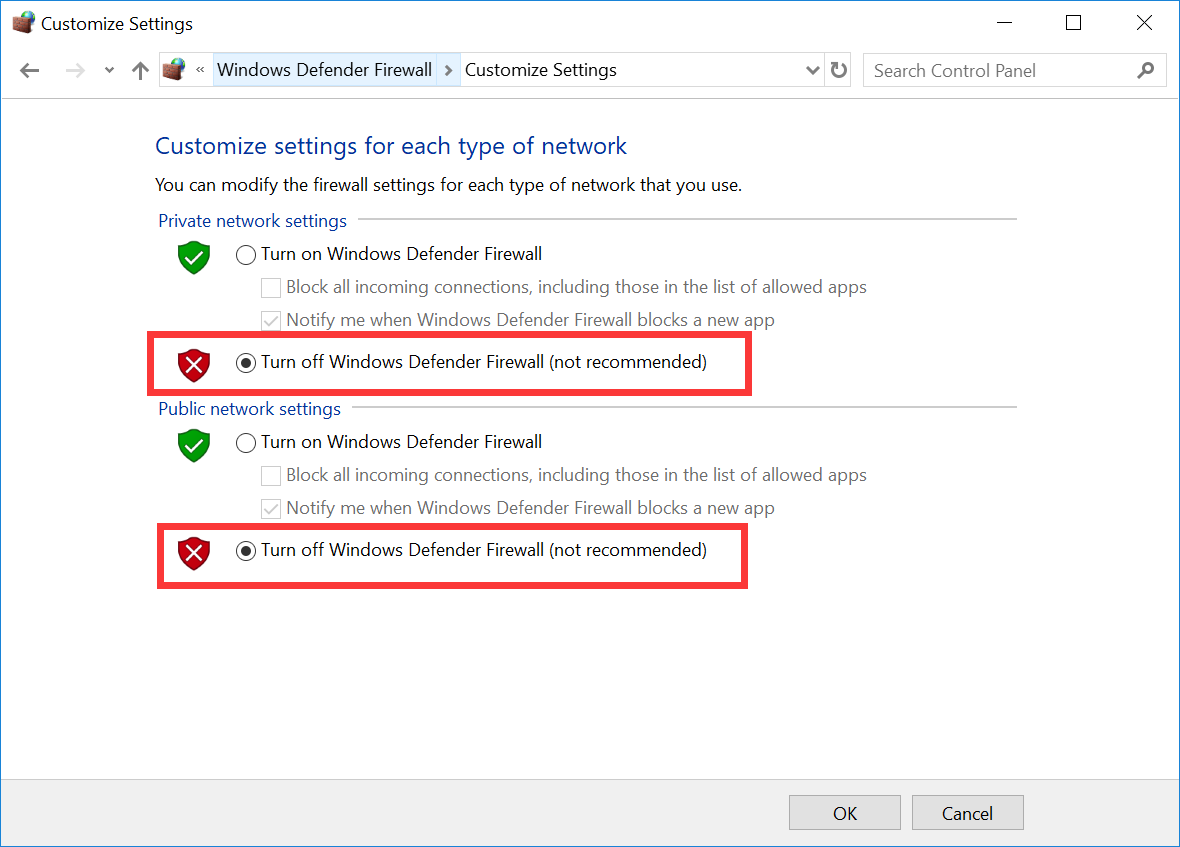
- In Windows Firewall, click Enable/Disable Windows Firewall to open the Custom Settings window.
- In the "Private and Public Network Settings" window, set both "Private Network Settings" and "Public Network Settings" to "Turn off Windows Firewall (not recommended)".
If you still cannot connect to your Windows instance through Remote Desktop after performing the above steps, please submit a ticket for feedback.
