

Scenarios
This document takes FileZilla as an example to introduce how to build an FTP service on a Windows CVM.
Software Download
FileZilla is a fast, reliable, cross-platform FTP, FTPS, and SFTP software. It has a graphical user interface (GUI) and many features. Easy to use and supports multiple protocols.
Operation Steps
- Log in to the CVM.
- Download and run the FileZilla Server installation program.
- Read the license agreement and click I Accept.
- Select the installation type (keep the default), and click Next.
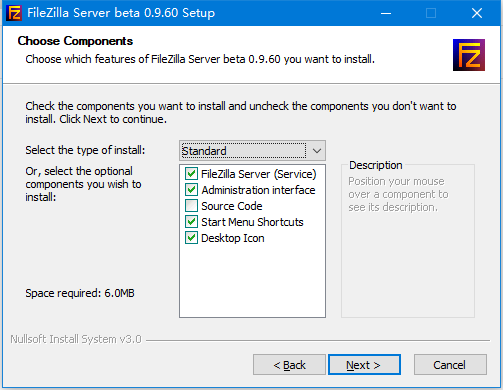
- Select the installation position and click Next.
- Select the startup mode for FileZilla Server, set the port for FileZilla Server, and click Next.
In general, select the default startup mode and an unoccupied port as the management port.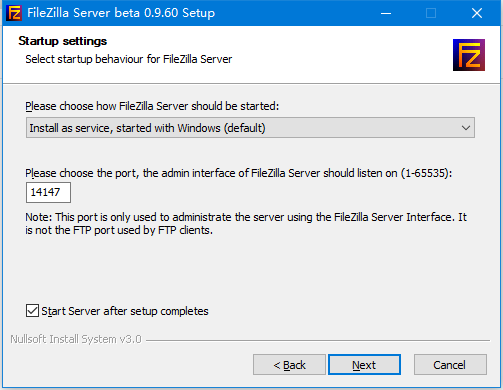
- Click Install to start FileZilla Server.
- In the opened Connect to Server window, enter the following information and click OK to connect to the FileZilla server.
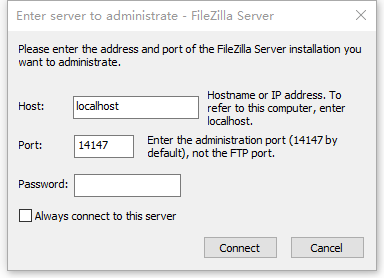
- Server address: Enter 127.0.0.1.
- Port: enter the management port set in step 6. For example: 14147.
- In the FileZilla Server window, click
 to open the User window.
 - In the opened User window, click Add to open the Add User Account dialog box.
- In the Add User Account dialog box that pops up, enter the user name and click OK.
For example, enter qcloud username. - In the User window, check Password, set a password for the new user, and click OK.
- In the pop-up Prompt Box, click OK.
- On the Shared folders settings interface, click Add to add a user directory.
- Select the resource directory for FTP and click OK.
Select the corresponding directory as the resource directory for FTP, and place theWelcome to use Converge Cloud Server.txtfile in it to facilitate verifying FTP service. - In the Shared Folder section, set the user's permissions for operating the FTP resource directory.
- Click OK to complete the establishment of the FileZilla FTP service.
 to open the User window.
Verifying the FTP Service
- On your local PC, install and open the FileZilla client.
- In the opened FileZilla client, enter the CVM public network IP, FTP user, and password, and click Quick Connection. You can then see the directory shared to the user by the FileZilla server, and the file Welcome to Converge Cloud server.txt previously placed in the directory. As shown below:
- Switch to the FileZilla server to monitor the connections to the FileZilla client. As shown below: