

Scenarios
This document takes Windows Server 2012 R2 operating system and Windows Server 2008 operating system as examples to describe how to add and install the IIS role on a Windows Cloud Virtual Machine (CVM).
Operation Steps
Windows Server 2012 R2 Operating System
Log in to the Windows CVM.
On the operating system interface, click
 to open Server Manager.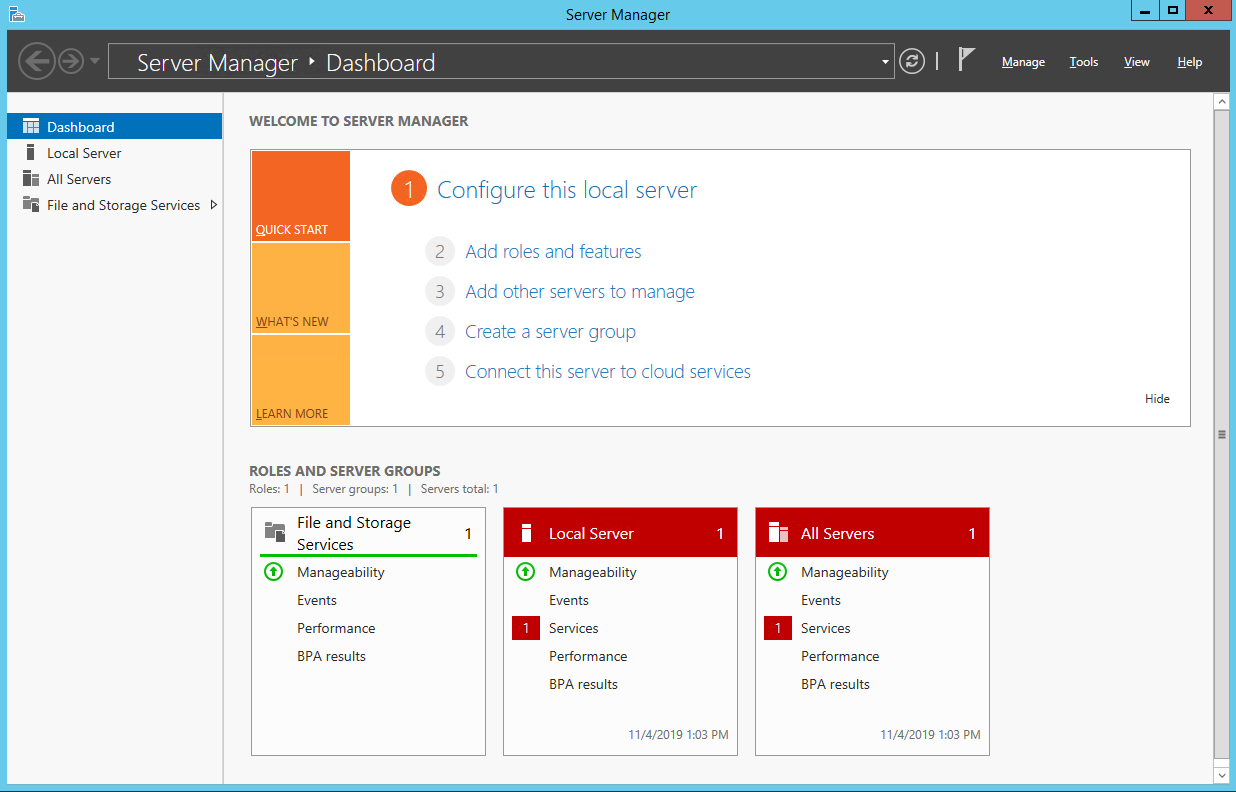
Click Add Roles and Features to pop up the Add Roles and Features Wizard window.
In the Add Roles and Features Wizard window, click Next.
On the Select Installation Type interface, select Role-based or Feature-based Installation, and click Next twice.
On the Select Server Roles interface, select Web Server (IIS).
The Add Features Required for Web Server (IIS) dialog box pops up.In the pop-up Add Features Required for Web Server (IIS) dialog box, click Add Features.
Click next.
On the Select Features interface, select .NET Framework 3.5 features and click Next twice.
On the Select Role Services interface, select CGI and click Next.
Confirm the installation information, click Install, and wait for the installation to complete.
After the installation is complete, visit the CVM's browser at
http://localhost/to verify whether IIS is installed successfully.
If the following interface is displayed, the installation is successful.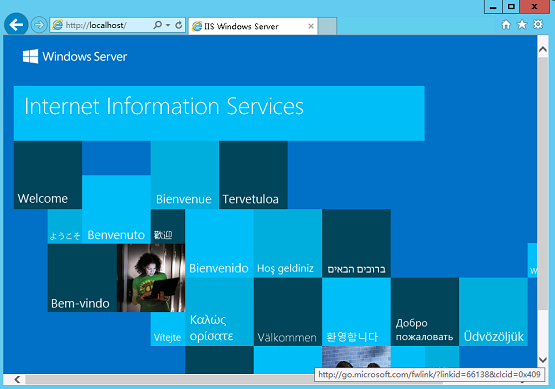
 to open Server Manager.
Windows Server 2008 Operating System
- Log in to the Windows CVM.
- On the operating system interface, click
 to open the server management interface.
 - In the left sidebar, choose Role, and in the right-side window, click Add Role.
- In the opened Add Roles Wizard window, click Next.
- On the Select Server Roles interface, select Web Server (IIS), and click Next twice.
- On the Select Role Services interface, select CGI and click Next.
- Confirm the installation information, click Install, and wait for the installation to complete.
- After the installation is complete, open a browser on the CVM and visit
http://localhost/to verify whether IIS was successfully installed.
If the following page appears, the installation was successful.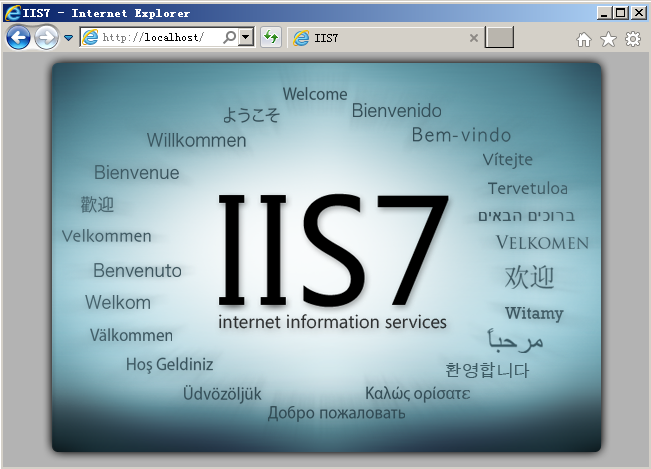
 to open the server management interface.