

Overview
Shared image is a custom image that you have created to share with other users. Users can easily obtain shared images and get the necessary components from other users, and add their custom content.
Note:
The cloud platform cannot guarantee the integrity or security of images shared by other users. It is recommended that users only use shared images from reliable sources.
Notes
- Each image can be shared with up to 50 users.
- The name and description of a shared image cannot be changed and it can only be used to create the Cloud Virtual Machine instance.
- Images shared with other users do not occupy their own image quota.
- Images shared with other users can be deleted, but all sharing of the image must be canceled first. For details on unshare operation, see Unshare Custom Image. The obtained shared image cannot be deleted.
- Images can be shared to accounts in the same region. If you need to share to different regions, you need to copy the image to different regions before sharing.
- The obtained shared image cannot be shared with other users.
Directions
Obtain Account ID
The shared image is identified by the unique ID of the peer account. You can notify the user to obtain it in the following ways:
- Log in to the CVM Console.
- Click Account Name in the upper-right corner and select Account Center.
- On the Account Information management page, check and record the account ID.
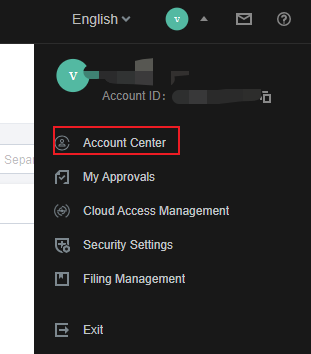
- Inform the other party to send the obtained account ID to you.
Share via the Console
- Log in to the CVM Console.
- In the left sidebar, click Image.
- Select the Custom Image tab. In the custom image list, select the custom image you want to share and click Share on the right.
- In the pop-up Shared Image window, enter the other party's account ID and click Share.
- Inform the other party to log in to the Cloud Virtual Machine console and select Image > Shared Image to view the shared image.
- To share with multiple users, repeat the above steps.