

Reading the Original EXT Data Disks after Reinstalling Linux to
Last Updated At: 2025-11-26 11:31:02
Overview
This document introduces the operation method of reading data from the original Linux system's data disk on the CVM after Linux is changed to Windows.
The Windows file system format is usually NTFS or FAT32, while the Linux file system format is usually the EXT series. When the operating system is reinstalled from Linux to Windows, the operating system type changes, but the data disks remain in the original format. The reinstalled system may be unable to access the original data disk file system. Format conversion software is needed to read the original data.
Prerequisites
- The DiskInternals Linux Reader software has been installed on the CVM reinstalled with Windows.
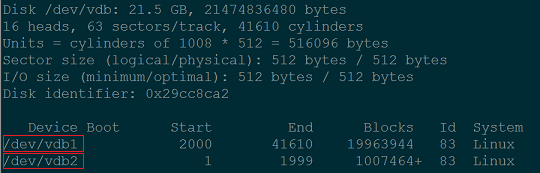
How to obtain the DiskInternals Linux Reader software:http://www.diskinternals.com/download/Linux_Reader.exe - It is known that the data disk mounted to the Linux CVM before reinstallation has two partitions, vdb1 and vdb2. As shown below:
Directions
Mount Data Disk
If the data disk has been mounted, you can skip this step.
- Log in to the CVM console.
- In the left sidebar, select Cloud Block Storage to enter the Cloud Block Storage Management page.
- Choose the instance row where the system has been reinstalled, and click More > Attach on the right.
- In the pop-up window, select the reinstalled Windows CVM and click OK.
Viewing Data Disk Information
- Run the DiskInternals Linux Reader software to view the information of the data disk that has just been mounted.
/root/mntand/root/mnt1are the two partitions (vdb1 and vdb2) of the Linux CVM data disk before reinstallation. As shown below:Note:At this time, the Linux data disk is read-only. If you need to use this data disk as a Windows data disk for read-write operation, please back up the required files first and reformat the disk into a standard type supported by the Windows operating system. For specific operations, see Windows Instance: Initializing the Data Disk.

2. Double-click to enter the /root/mnt directory, right-click the file to be copied, and select Save to save the file. As shown below: