Overview
When creating Cloud Virtual Machine, you can configure the instance by specifying custom data. When Cloud Virtual Machine starts for the first time, the custom data is passed to the cloud server as text and executed. If you purchase multiple Cloud Virtual Machines at once, the custom data will be executed on all cloud servers upon their first startup.
This document takes the example of passing a PowerShell script when a Windows Cloud Virtual Machine is started for the first time.
Notes
- Windows operating systems that support custom data include:
- Windows Server 2016 Datacenter Edition 64-bit (English)
- Windows Server 2012 R2 Datacenter Edition 64-bit (English)
- Commands are executed by passing text only during the initial startup of the Cloud Virtual Machine.
- Custom data content shall not exceed 16KB before Base64 encoding.
- Custom data is transmitted via Base64 encoding. If you directly copy non-base64 script files, please do not check Input as Base64 Encoded Text.
- Executing tasks specified in custom data during startup will increase the server's startup time. Please wait a few minutes and test if the task has been successfully executed.
- In this example, you use the PowerShell tag to specify a Windows PowerShell script, for example, the tags.
Directions
Prepare the Text
Please prepare the text based on your actual needs:
PowerShell Script
Using PowerShell Tag, prepare a PowerShell script file.
For example, if you need to create a file named "cloud.txt" with the content "Hello Cloud." in the C: drive of the Cloud Virtual Machine, you can use the PowerShell tag to prepare the following content:
<powershell>
"Hello Converge Cloud." | Out-File  C:\cloud.txt
</powershell>
Base64 Encoded Script
Execute the following command to create a PowerShell script file named "script_text.ps1".
vi script_text.ps1Press i to switch to Edit Mode, refer to the following content, write and save the "script_text.ps1" script file.
<powershell>
"Hello Cloud." | Out-File  C:\cloud.txt
</powershell>
Execute the following command to perform Base64 encoding on the script file "script_text.ps1".
base64 script_text.ps1The following information will be returned:
PHBvd2Vyc2hlbGw+CiJIZWxsbyBUZW5jZW50IENsb3VkLiIgfCBPdXQtRmlsZSAgQzpcdGVuY2VudGNsb3VkLnR4dAo8L3Bvd2Vyc2hlbGw+Cg==
Transmitting Text
We provide multiple ways to start instances, mainly divided into the following two scenarios. Please select according to your actual needs:
Transmitting through the Official Website or Console
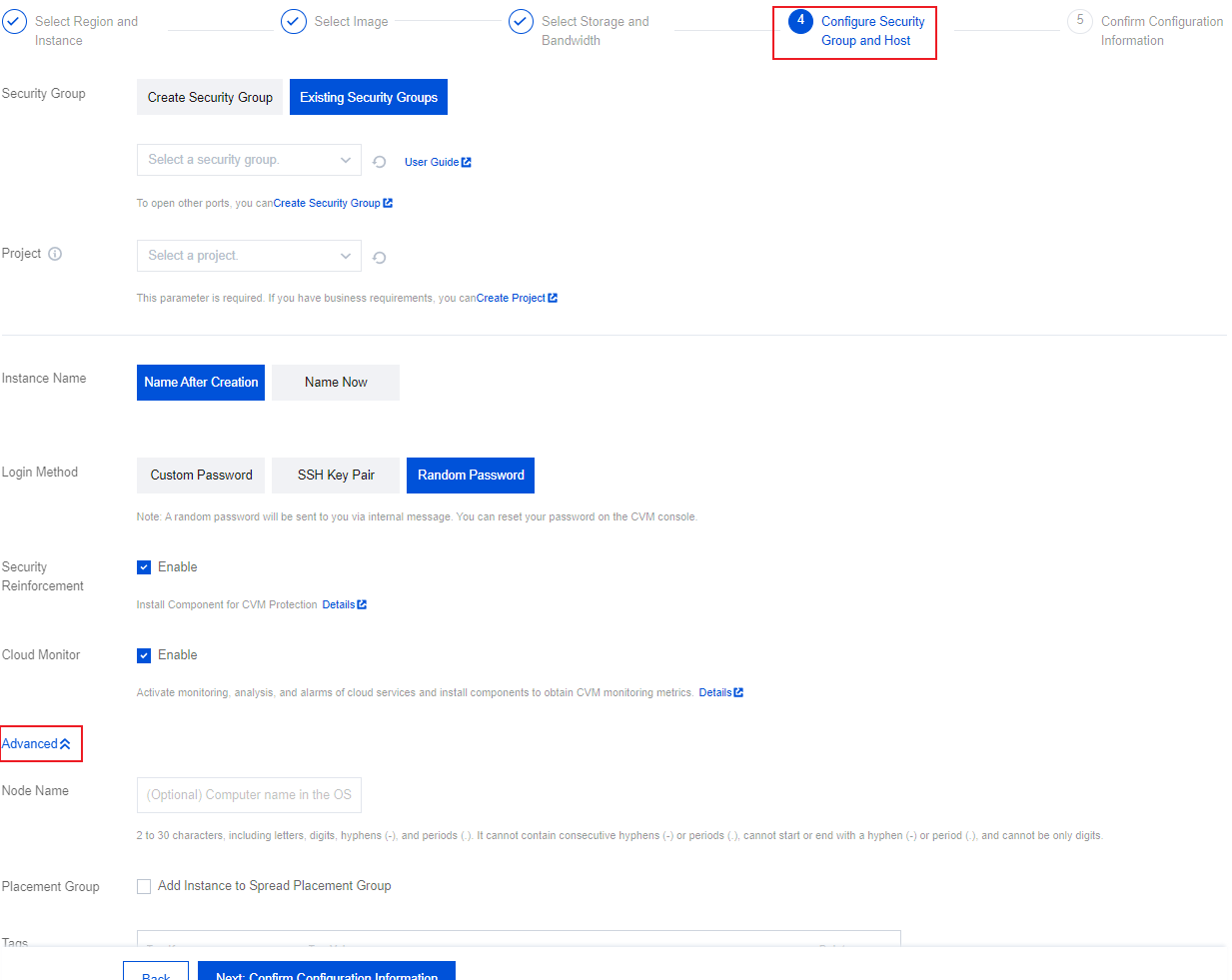
- See Create an Instance Purchase an Instance. In Step 4: Set Security Group and Host, click Advanced Settings. As shown below:
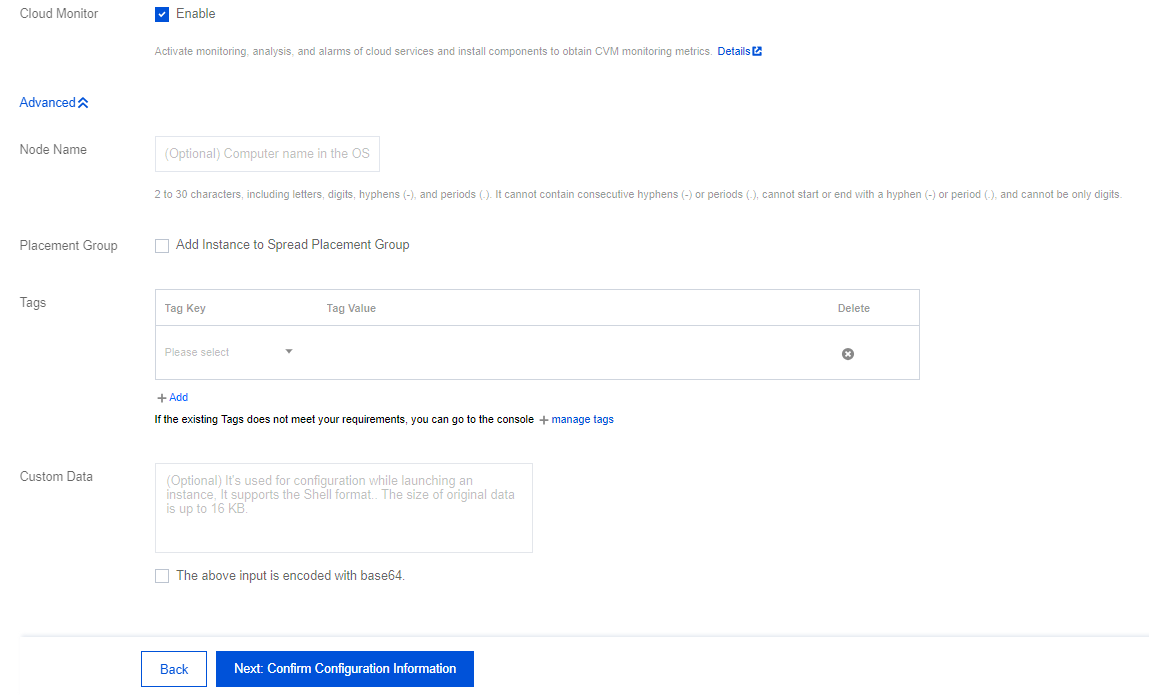
- In Advanced Settings, enter the prepared text in the Custom Data text box according to your actual needs.
- PowerShell script: Type in PowerShell script.
- Base64 Encoded Script: First check the box for Input as Base64 Encoded Text, then input Base64 Encoded Script (#Base64Script). As shown below:
- Follow the instructions on the interface to complete the creation of the Cloud Virtual Machine.
Transmitting through API
When you create a CVM through the API, you can assign the encoding result returned from the Base64 Encoded Script to the UserData Parameter of the RunInstances API to pass the text.
For example, create a request parameter for a Cloud Virtual Machine with a UserData parameter, as shown below:
https://cvm.api3.convergecloud.com/?Action=RunInstances
  &Version=2017-03-12
  &Placement.Zone=ap-cityA-2
  &ImageId=img-pmqg1cw7
  &UserData=PHBvd2Vyc2hlbGw+CiJIZWxsbyBUZW5jZW50IENsb3VkLiIgfCBPdXQtRmlsZSAuXHRlbmNlbnRjbG91ZC50eHQKPC9wb3dlcnNoZWxsPgo=
  &<Common request parameters>
Verifying custom data configuration
- Log in to the CVM.
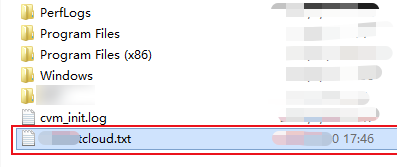
- In the operating system interface, open the C:\ drive and check whether
cloud.txttext file exists.
In the operating system interface, open the C:\ drive and check whethercloud.txttext file exists.