

Overview of Windows Recovery Mode
Windows System Recovery Mode (Recovery) indicates that Windows uses the automatic repair feature. When Windows detects certain system issues and believes that continued use will cause damage to the system, it will prevent Windows from starting and enter the System Recovery Options interface, providing a state for users to repair, backup, or restore the system.
The System Recovery Options include several tools, such as Startup Repair, System Restore and Windows Memory Diagnostics. These tools can be used to fix problems, backup data, and perform system recovery.
When the user cannot log in to the CVM remotely and the following status appears after logging in to the CVM through the console, it indicates that the Windows CVM has entered the recovery mode.
Reasons for Entering Recovery Mode
Common reasons for entering the recovery mode are as follows:
- The power is forcefully turned off while Windows is running or shutting down. This includes forced shutdowns performed in the console. Improper shutdown may cause the system to lose some critical data and thus enter recovery mode.
- The power is cut off during Windows update. Critical data is lost during the update and the system enters the recovery mode.
- The system is damaged by a Trojan or virus.
- There is a bug in Windows core services. A risk is detected through Windows self-check.
- The system loses critical data or is damaged. Users may accidentally damage system files, causing the system to enter the recovery mode.
Precautions
Converge Cloud recommends that users take the following precautions:
- When shutting down, open the console to observe the Windows shutdown process. Converge Cloud soft shutdown has a timeout mechanism. After a soft shutdown is performed, if the system does not shut down within the scheduled time, a prompt of failure will pop up. If the shutdown is slow or Windows update occurs during shutdown, just wait for the CVM to shut down and do not force shutdown. It is recommended to refer to Several Scenes of Shutdown Failure.
- Check whether there are any abnormal programs or processes such as Trojans or viruses in the system.
- Check whether the system management and anti-virus software are running normally.
- Keep Windows update packages up-to-date in a timely manner, especially some important updates and security updates.
- Regularly check the system event log to verify if there are any errors in the core services.
Solution
After Windows enters the recovery mode, users can try to continue startup and running, or perform automatic recovery. Minor problems can be repaired by Windows itself. Execute the following steps:
- Log in to the CVM from the console.
- In the recovery mode interface, click Next.
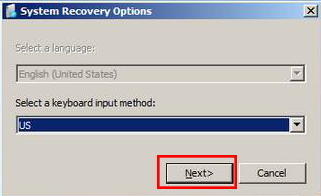
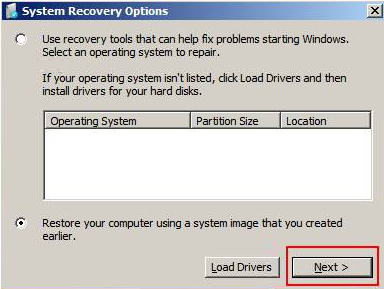
- When the system recovery options appear, click Next using the default plan.
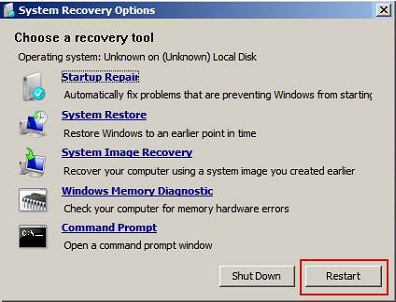
- Click [Restart] and quickly press F8 on the keyboard.
- Select Normal Boot of Windows.
If Windows cannot start, reinstall the system in the console. For details, refer to Using the Console to Reinstall the System.
