

What is the Default Space of the CVM System Disk?
Currently, the default space of the system disk of a newly purchased CVM is 50 GB.
In Which Regions and Availability Zones Can the System Disk Be Resized to a Size Larger Than 50 GB?
When the system disk is a CBS, all regions that support snapshots support adjusting the system disk to a size larger than 50 GB.
When I Reinstall the System, Does the System Disk of a CVM Support Scaling Out (Capacity Expansion)?
It can be divided into the following two scenarios. Please refer to them based on your actual situation:
The system disk is a CBS:
When you reinstall the system, capacity scale-out (increasing the size of the system disk) is supported, but capacity scale-in (reducing the size of the system disk) is not supported.The system disk is a local hard disk:
When you reinstall the system, there are two situations according to the size of the current system disk:- The default system disk space is 50 GB when you purchase the instance, and capacity scale-out is not supported.
- This situation applies to instances purchased earlier: if the system disk space is less than or equal to 20 GB, it will be reinstalled to 20 GB by default; if the system disk space is greater than 20 GB, it will be reinstalled to 50 GB by default.
How to Scale out the Capacity of a CBS?
If your CVM is a CBS server, you can scale out its capacity. For more information on the Operation Guide, see Scaling out CBS.
Does the system disk support scaling out (expanding the capacity) and then scaling in (reducing the capacity) by reinstalling the system?
The system disk does not support scale-in.
How Can I Save the Current Data of the CVM Instance and Scale Out the System Disk?
You can choose to create an image first, and then reinstall the system through the image to achieve the purpose of scaling out the system disk.
When a small-capacity image of less than 50 GB is selected for creating or reinstalling a CVM, what is the size of the system disk?
The selected small image does not affect the size of the system disk, and the minimum size is 50 GB.
How to View the Data Disk?
- Log in to the CVM console.
- Select CBS in the left sidebar to enter the CBS management page.
The Data Disk displaying on the Attribute column refers to the data disks available in the current region.
After you reinstall the Windows system to the Linux system, how to read and write the original NTFS type data disk?
Windows file systems usually use NTFS or FAT32 format, while Linux file system formats are usually EXT series. When the operating system is reinstalled from Windows to Linux, the operating system type changes, but the data disk remains in the original format. The reinstalled system may be unable to access the data disk file system. You can perform the following operations on the reinstalled Linux CVM to read the original data disk data under the Windows system:
- Use the following command on the Linux system to install the ntfsprogs software so that Linux can support the NTFS file system:
yum install ntfsprogs
- Mount the data disk under Windows to the Linux CVM. If the data disk has already been mounted, you can skip this step:
i. Log in to the CVM console.
ii. Select CBS in the left sidebar to enter the CBS management page.
iii. Click More > Mount of the Windows data disk that needs to be mounted.
iv. In the pop-up window, select the reinstalled Linux CVM and click OK. - Use the command to view the data disk mounted from Windows:
parted -l
- Use the following command format to mount the data disk:
mount -t ntfs-3g Data Disk Path Mount Point

5. After the file system is identified, the mounted data disk can be directly read and written by the Linux system.
After Reinstalling the Linux System to the Windows System, How Do I Read the Original EXT-Type Data Disk?
Windows file systems usually use NTFS or FAT32 format, while Linux file system formats are usually EXT series. When the operating system is reinstalled from Linux to Windows, the operating system type changes, but the data disks remain in the original format. The reinstalled system may be unable to access the original data disk file system. You can perform the following operations on the reinstalled Windows CVM to read the data on the original Linux system data disk:
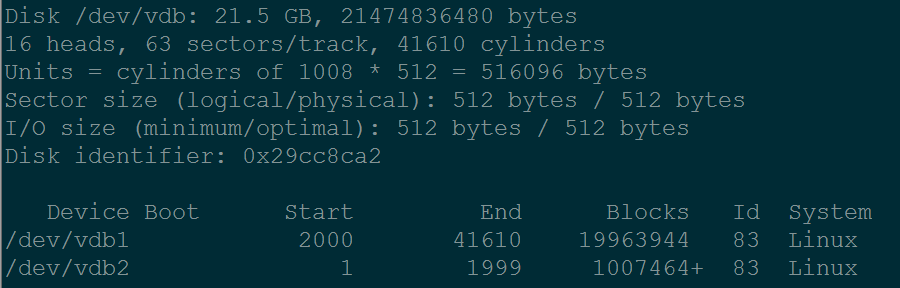
- Assume that the Linux CVM data disk has two partitions /dev/vdb1 and /dev/vdb2 before reinstallation:
- Download and install the DiskInternals Linux Reader software on the reinstalled Windows CVM.
- Mount the data disk under Linux to the Windows CVM If the data disk has already been mounted, you can skip this step:
i. Log in to the CVM console.
ii. Select CBS in the left sidebar to enter the CBS management page.
iii. Click More > Mount of the Linux data disk you want to mount.
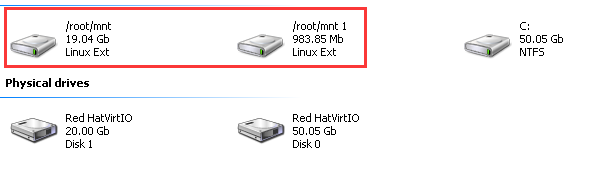
iv. In the pop-up window, select the reinstalled Windows CVM and click OK. - Click to run DiskInternals, you can see the information of the newly mounted data disks, where /root/mnt and /root/mnt1 correspond to partitions vdb1 and vdb2 respectively.
- Click to enter /root/mnt, right-click the file you want to copy, and select Save to save the file.
Note:
At this time, the Linux data disk is read-only. If you need to use this data disk as a Windows data disk for read and write operations, please back up the required files first and then reformat it into a standard type supported by the Windows operating system. For specific operations, see Partitioning and formatting Windows data disks.
