

This document introduces the troubleshooting methods and solutions for Linux and Windows CVM when they cannot be remotely connected due to high bandwidth usage.
Failure Symptoms
- After the CVM console log-in, the bandwidth monitoring data of the CVM prompts that excessively high bandwidth usage is preventing connection to the Converge Cloud server.
Failure Location and Troubleshooting
- Log in to the CVM console.
- Select Cloud Virtual Machine to be checked and click Log-in.
- In the pop-up Log in to Windows/Linux Instance window, select Other methods (VNC) and click Log in now to log in to the CVM.
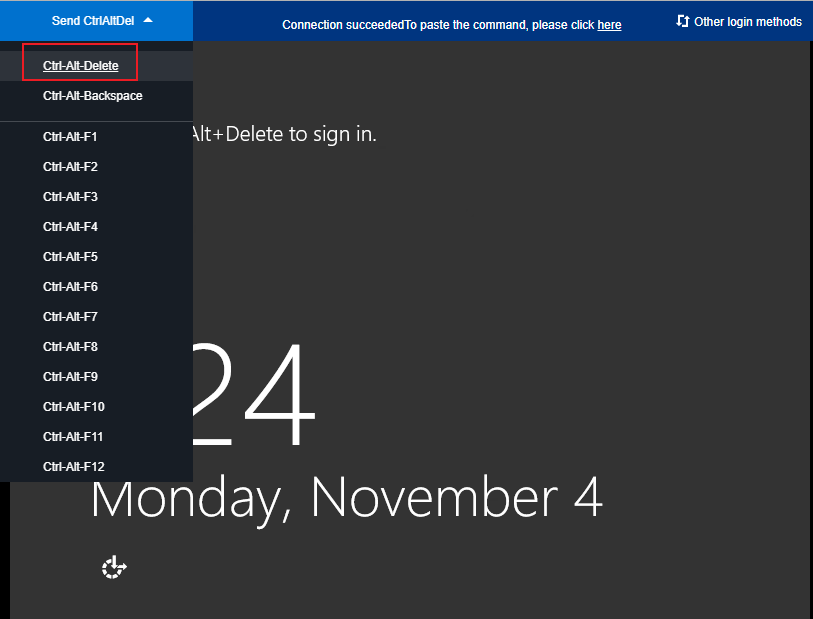
- In the log-in window that pops up, select Send Remote Command in the upper left corner and click Ctrl-Alt-Delete to enter the system log-in interface. As shown below:
For Windows Servers
After you log in to the Windows CVM via VNC, you need to do the following:
Note: The following operations take a Windows Server 2012 system CVM as an example.
- In CVM, click
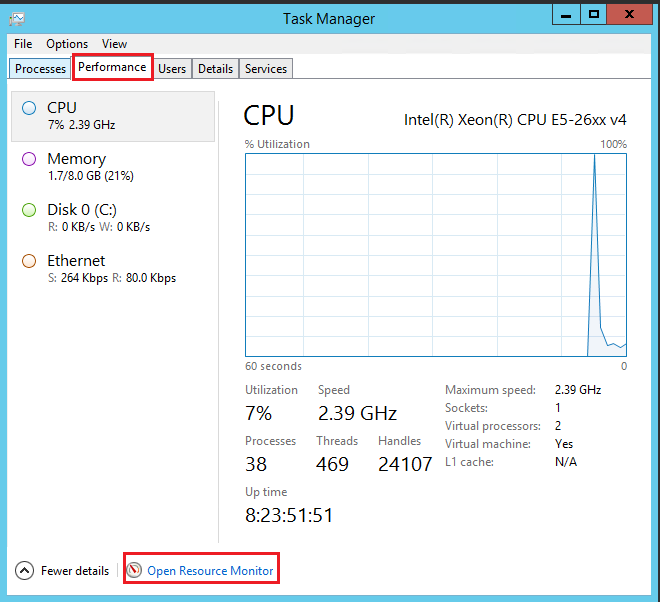
 and select Task Manager to open the Task Manager window.
 - Select the Performance tab and click Open Resource Monitor. As shown below:
- In the opened Resource Monitor, check the process that consumes more bandwidth and determine whether this process is operating normally based on your actual business. As shown below:
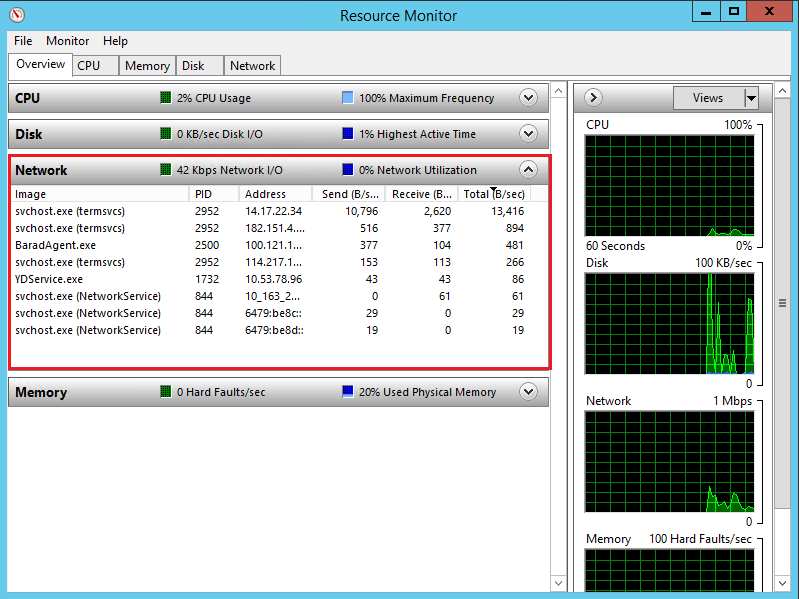
If a business process is consuming more bandwidth, you need to analyze whether this increase is caused by changes in access volume and whether space optimization or server configuration upgrades are required.
If an exception process consumes more bandwidth, this increase may be caused by a virus or Trojan horse. You can terminate the process manually or use security software to detect and kill it. You can also back up the data and reinstall the system.
Note: Many virus programs in Windows systems disguise themselves as system processes. You can make a preliminary identification with process information in Task Manager > Processes:
Ordinary system processes come with complete signatures and descriptions, and they are mostly located in the C:\Windows\System32 directory. The name of a virus program may be the same as the system process, but it lacks signatures and descriptions, and its position may unusual.If the process that consumes more bandwidth is the Converge Cloud component process, submit a ticket and contact us for further localization.
 and select Task Manager to open the Task Manager window.
For Linux Servers
After you log in to the Linux CVM via VNC, you need to do the following:
Note: The following operations take the CVM running CentOS 7.6 as an example.
Run the following command to install the iftop tool (the iftop tool is a utility for monitoring traffic on Linux servers).
yum install iftop -yNote: For Ubuntu system, please run
apt-get install iftop -ycommand.Run the following command to install lsof.
yum install lsof -yRun the following command to run iftop. As shown below:
iftop

<=,=>indicates the direction of traffic.- TX means sending traffic.
- RX means receiving traffic.
- TOTAL indicates total traffic.
- Cum indicates the total traffic since iftop was run up to now.
- peak indicates the peak flow rate.
- rates represents the average traffic rate over the past 2s, 10s, and 40s.
According to the IP consuming traffic in iftop, execute the following command to track the process connected to the IP.
lsof -i | grep IP
For example, if the IP consuming traffic is 201.205.141.123, execute the following command:
lsof -i | grep 201.205.141.123
According to the following returned results, we know that the bandwidth of this server is mainly consumed by the SSH process.
sshd       12145    root    3u  IPV4  3294018       0t0   TCP 10.144.90.86:ssh->203.205.141.123:58614(ESTABLISHED)
sshd       12179  ubuntu    3u  IPV4  3294018       0t0   TCP 10.144.90.86:ssh->203.205.141.123:58614(ESTABLISHED)
- Check the process that consumes more bandwidth to evaluate whether the process is normal.
- If a business process is consuming more bandwidth, you need to analyze whether this increase is caused by changes in access volume and whether space optimization or server configuration upgrades are required.
- If an exception process consumes more bandwidth, this increase may be caused by a virus or Trojan horse. You can terminate the process manually or use security software to detect and kill it. You can also back up the data and reinstall the system.
- If the process that consumes more bandwidth is the Converge Cloud component process, submit a ticket and contact us for further localization.