

Windows Instance: Failed to log in to a Windows CVM due to high
Last Updated At: 2025-11-26 11:12:18
This document introduces the troubleshooting methods and solutions for Windows CVMs that cannot log in due to high CPU or memory usage.
The following directions are based on Windows Server 2012 R2. The detailed directions may vary depending on the operating system version.
Possible Reasons
High CPU or memory usage can easily lead to problems such as slow service response and server login failure. The reasons for high CPU or memory usage may be caused by factors including hardware factors, system processes, business processes, or Trojan viruses. You can use Cloud Monitor to create a CPU or memory Utilization threshold alarm, and when the CPU or memory usage exceeds the threshold, you are notified in time.
Troubleshooting Approach
- Locate specific processes that are consuming CPU or memory resources.
- Analyze processes with high CPU or memory usage resources.
- If it is an exception process, the high CPU or memory usage may be caused by a virus or Trojan horse. You can terminate the process manually or use security software to detect and kill it.
- If it is a business process, you need to analyze whether the high usage is caused by changes in traffic and whether there is room for optimization.
- If it is a Converge Cloud component process, submit a ticket and contact us for further localization.
Positioning Tools
Task Manager: An application and process management tool that comes with Windows, which displays information about computer performance and running software, including the name of the running process, CPU load, memory usage, I/O status, logged-in users, and Windows service information.
- Process: A list of all running processes on the system.
- Performance: Overall statistics about system performance, such as overall CPU usage and the amount of memory in use.
- User: All users who currently have sessions on the system.
- Details: An enhanced version of the Process tab, which displays detailed information about the process, such as the process's PID, status, CPU, and memory usage.
- Service: All services in the system (including those that are not running).
Troubleshooting
Logging in to the CVM via VNC
If the CVM is heavily loaded, you will not be able to establish a remote connection and will need to use VNC to log in to the Windows instance.
- Log in to the CVM Console.
- In the instance list, select the Windows CVM you want to log in to and click Log In.

- In the pop-up Standard Log-in | Windows Instance window, select VNC Log-in.
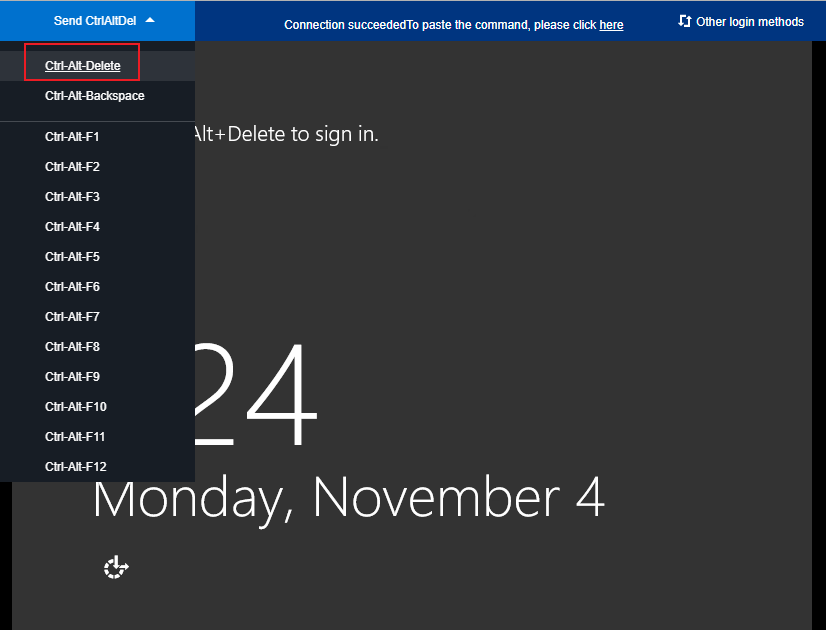
- In the log-in window that pops up, select Send Remote Command in the upper left corner and click Ctrl-Alt-Delete to enter the system log-in page.
Checking Process Usage
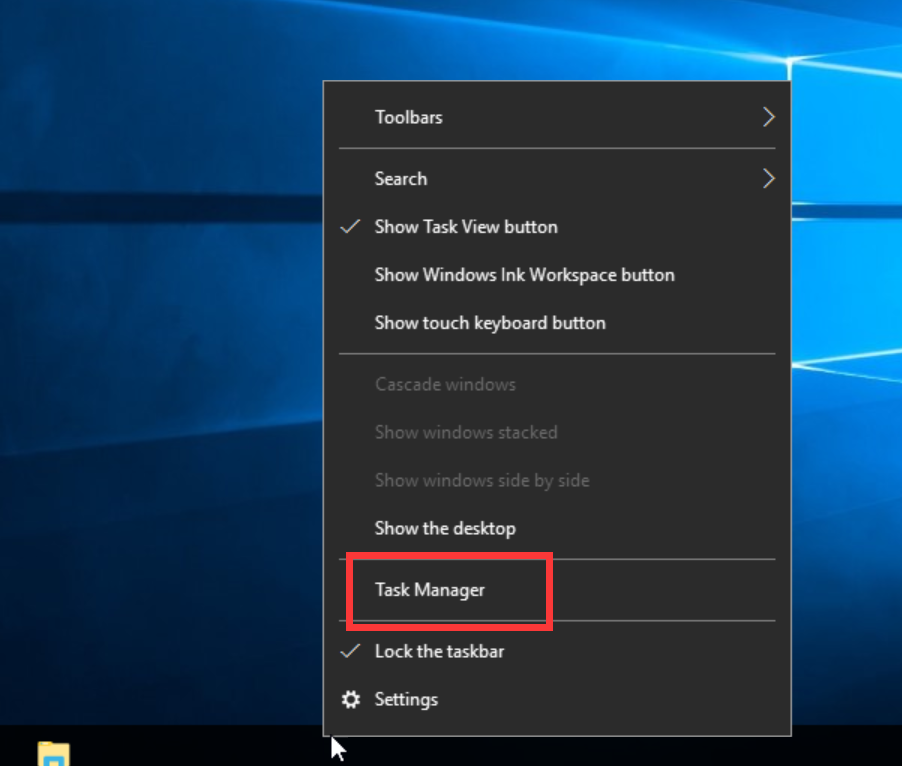
- In the CVM, right-click the Taskbar and select Task Manager. As shown below:
- In the opened Task Manager, you can view the resource usage. As shown below:
You can click CPU or Memory to sort the processes in ascending/descending order.

Process Analysis
Analyze and troubleshoot problems based on the processes in the task manager and take corresponding solutions.
A system process causes the issue
If you find that system processes are taking up a lot of CPU or memory resources, please check the following:
- Check the process name.
Some viruses use names similar to system processes, such as svch0st.exe, explore.exe, iexplorer.exe, etc. - Check the location of the executable file corresponding to the process.
System processes are generally located in the directoryC:\Windows\System32and have complete signatures and introductions. In Task Manager, right-click the process you want to view and select Open File Location to view the location of the specific executable file. For examplesvchost.exe.- If the process location is not under the directory
C:\Windows\System32, it indicates that the CVM may be infected with a virus. Please manually check and remove it or use a security tool to scan and disinfect it. - If the process location is under the
C:\Windows\System32directory, please restart the system or close unnecessary but safe system processes.
- If the process location is not under the directory
Common system processes are as follows:
- System Idle Process: system space process, showing the percentage of CPU idle time
- system: memory management process
- Explorer: desktop and file management
- iexplore: Microsoft's browser
- csrss: Microsoft Client/Server Runtime Subsystem
- svchost: system process, used to execute DLL
- Taskmgr: Task Manager
- Isass: Local Security Authority Subsystem Service
An unhealthy process causes the issue
If you find some processes with strange names that take up a lot of CPU or memory resources, they may be Trojan virus processes, such as xmr64.exe (mining virus). It is recommended that you use a search engine to search and confirm whether it is a Trojan virus process.
- If it is a Trojan virus process, please use security tools to detect and kill it. Consider backing up data and reinstalling the system if necessary.
- If it is not a Trojan virus process, please restart the system or close unnecessary and safe processes.
A service process causes the issue
If you find that business processes occupy a large amount of CPU or memory resources, such as IIS, HTTPD, PHP, Java, etc., further analysis is recommended.
For example, determine whether the current business volume is large.
- If the business volume is large, it is recommended that you upgrade the server configuration. If you do not upgrade the server configuration, you can consider whether there is room for optimization in the business program and optimize it.
- If the business volume is not large, further analysis is required in combination with the business error log. For example, improper parameter configuration leads to wasted resources.
A Converge Cloud component process causes the issue
Submit a ticket to contact us for further troubleshooting and handling.