

Tenant Cloud
Compute
Cloud Virtual Machine
Troubleshooting
Windows Instance: Mac Remote Log-in Exception
This document describes common problems and solutions when you log in to Windows remotely using Microsoft Remote Desktop on your Mac.
Failure Symptoms
- When Mac logs into Windows remotely via Microsoft Remote Desktop, the message The certificate couldn't be verified back to a root certificate appears.
- When Remote Desktop Connection is used on a Mac, a message appears saying, Remote Desktop Connection cannot verify the identity of the computer you want to connect to.
Troubleshooting
Note:
The following operation uses Windows Server 2016 as an example.
Logging in to the CVM via VNC
- Log in to the CVM console.
- On the instance management page, find the target CVM instance and click Log In.
- In the pop-up Log in to Windows Instance window, select Other methods (VNC) and click Log in now to log in to the CVM.
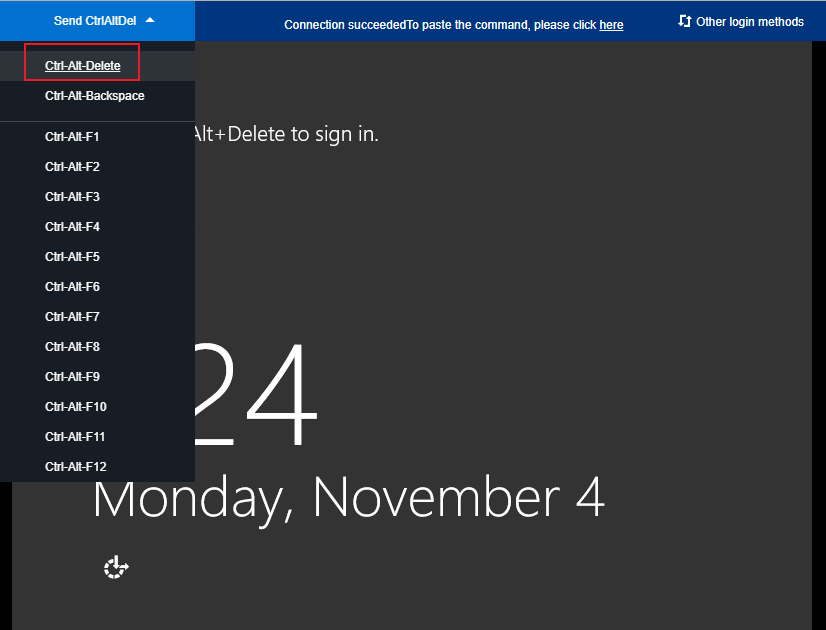
- In the log-in window that pops up, select Send Remote Command in the upper left corner and click Ctrl-Alt-Delete to enter the system log-in interface.
Modifying the Instance's Local Group Policy
- On the operating system interface, click
 , enter gpedit.msc, and press Enter to open the Local Group Policy Editor.
 , enter gpedit.msc, and press Enter to open the Local Group Policy Editor.
Note:
You can also use the Win+R shortcut key to open the Run interface.
- In the left sidebar, select Computer Configuration > Administrative Templates > Windows Components > Remote Desktop Services > Remote Desktop Session Host > Security, and double-click Remote (RDP) connections require the use of a specified security layer.
- In the window that opens, select Enabled and set Security layer to RDP.
- Click OK to complete the configuration.
- Restart the instance and try reconnecting to see if it works.