

Unabling to Log in Due to High CPU and Memory Usage of the Linux System
Last Updated At: 2026-08-14 08:08:00
This document describes the troubleshooting methods and solutions for the Linux CVM that is unable to log in due to high CPU or memory usage.
Possible Reasons
High CPU or memory usage can easily lead to problems such as slow service response and server login failure. The reasons for high CPU or memory usage may be caused by factors including hardware factors, system processes, business processes, or Trojan viruses. You can use Cloud Monitor to create CPU or memory usage threshold alarms. When the CPU or memory usage exceeds the threshold, you will be notified immediately.
Positioning Tools
Top: A commonly used monitoring tool under the Linux system, used to obtain CPU or memory usage at the process level in real time. Take the output information of the top command in the following figure as an example.
The output information of the top command is mainly divided into two parts. The upper part shows the overall usage of CPU and memory resources :
- The first line: Current system time, number of currently logged-in users, and system load.
- The second line: The total number of system processes, the number of running processes, dormant, sleeping, and zombie processes.
- The third line: Current CPU usage.
- The fourth line: Current memory usage.
- The fifth line: Current usage of the Swap space.
The lower part shows the resource usage by process : - PID: Process ID.
- USER: Process owner.
- PR: Process priority NI: NICE value. The smaller the NICE value, the higher the priority.
- VIRT: The size of virtual memory used, in KB.
- RES: The current memory size used, in KB.
- SHR: The size of the shared memory used, in KB.
- S: Process status.
- %CPU: The percentage of CPU time used by the process during the update interval.
- %MEM: The percentage of memory used by the process during the update interval.
- TIME+: The CPU time used by the process, accurate to 0.01s.
- COMMAND: Process name.
Troubleshooting
Logging in to the CVM
Choose different log-in methods to log in to the CVM according to actual needs.
Remotely log in to the Linux CVM through third-party software. > Note: When the Linux CVM is under high CPU load status, you may be unable to log in.
Use VNC to log in to the Linux instance. > Note: When the Linux CVM is under high CPU load status, the console can still be logged in normally.
Checking Process Usage
Perform the following command to check the system load and identify processes that consume more resources based on the %CPU column and the %MEM column.
top
Analyzing Process
Analyze and troubleshoot problems based on the processes in the task manager and take corresponding solutions.
- If the business process occupies a large amount of CPU or memory resources, it is recommended to analyze whether the business process has room for optimization and optimize it or upgrade the server configuration.
- If an abnormal process occupies a large amount of CPU or memory resources, the instance may be infected. You can terminate the process yourself or use security software to kill it. If necessary, consider backing up data and reinstalling the system.
- If the component process occupies a large amount of CPU or memory resources, submit a ticket and contact us for further location processing.
Common components are: - sap00x: Security component process.
- Barad_agent: Monitoring component process.
- secu-tcs-agent: Security component process.
Terminating Process
According to the analyzed resource-occupying processes, record the process PIDs that need to be terminated.
Enter
k.Enter the PID of the process to be terminated and press Enter. As shown below:
Here, taking terminating the process with PID 23 as an example.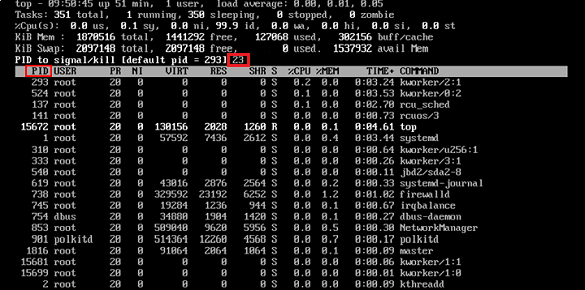
Note: If
kill PID 23 with signal [15]:appears after pressing Enter, simply press Enter again to keep the default setting.After the operation is successful, the page will display the
Send pid 23 signal [15/sigterm]prompt message, and press Enter to confirm.
Other Related Failures
Handling Scenarios of Idle CPU With High Load
Problem Description
Load average is an evaluation of the CPU load. The higher the value, the longer the task queue is and the more tasks are waiting to be performed.
Observe through top, similar to the following figure, the CPU is idle, but the load average is very high.
Solution
Perform the following command to check the process status and check whether there is a process in D status. As shown below:
ps -axjf

Note:
If there are many D-status processes, you can solve the problem by restoring the resources that the process depends on or restarting the system.
Handling Kswapd0 Process Which Occupies High CPU
Problem Description
While the Linux system manages memory through the paging mechanism, it also allocates part of the disk as virtual memory. While kswapd0 is the process responsible for paging in the Linux system virtual memory management. When the system is low on memory, kswapd0 will frequently perform paging operations. Paging operations consume a lot of CPU resources, causing the process to continue to occupy high CPU resources.
Solution
Perform the following command to find the kswapd0 process.
topObserve the status of the kswapd0 process.
If the system is in a non-sleep status for a long time and occupies a high CPU resource, perform step 3 to check the memory usage.Perform
vmstat,free,psand other instructions to query the memory usage of processes in the system.
Depending on the memory usage, reboot the system or terminate unnecessary and safe processes. If the values of si and so are also relatively high, it represents that the system has frequent paging operations and the current system's physical memory can no longer meet your needs. Consider upgrading the system memory.