

WAF is divided into two types: SaaS WAF and CLB WAF. The domain name access methods of the two types of WAF are different. Complete the access according to the actual situation.
SaaS WAF Access Configuration
SaaS WAF allocates a CNAME to the protected domain name, modifies the DNS resolution record of the website, and forwards the web requests received by the website to WAF, thereby providing security protection for the website. When it is used in conjunction with security groups, it can prevent attackers from bypassing the WAF and directly attacking the origin server of the website. To achieve the above features, you need to complete the following steps:
Step 1: Domain Name Addition
To enable WAF to recognize the domain names that require protection, you should first add the domain names to WAF. The following uses the protection of waf.qcloudwaf.com as an example to describe the configuration steps.
- Log in to the WAF console. In the left sidebar, select Asset Center > Access Management to enter the Domain Name Access page.
- On the Domain Name Access page, click Add Domain Name, enter the Add Domain Name page, and select SaaS Type.
- Configure relevant basic parameters on the Add Domain Name page.
- Domain name configuration
- Add the domain name waf.qcloudwaf.com to be protected in the domain name input box.
- The protocol and port can be selected according to the actual situation. For example, check HTTP and select port 80; check HTTPS and select port 443.
- Optional HTTPS origin-pull method: HTTP or HTTPS.
- Optional certificate source: Hosted certificate or self-owned certificate.
- Enter the real IP address of the origin server of the website to be protected, that is, the public IP address of the origin server, in the origin server IP input box.
- Other configurations
- Check whether network traffic transits through other intermediate proxy devices before reaching the WAF. If so, select Yes, and WAF supports configuring the obtaining method of the custom source IP. If not, select No.
- Click Save. After completing the configuration, you can see the domain name you just added and the CNAME address allocated for the site in the domain name list.
WAF will allocate a unique CNAME to each domain name added to WAF (regardless of whether it is a first-level or second-level domain name).
Step 2: Local Test
To access the website, DNS resolution should be performed on the local machine. Before that, the IP address corresponding to the target domain name will be obtained from the local hosts file. Therefore, you can modify the hosts file to route local access traffic to WAF. This allows you to test the line connectivity of accessing the website via WAF without directly modifying the DNS resolution record, which could affect public network users' access to the website.
- Log in to the WAF console. In the left sidebar, select WAF > Protection Settings to view the VIP address of
waf.qcloudwaf.comin the domain name list. - Modify the hosts file.
- Modify
C:\Windows\System32\drivers\etc\hostson Windows and add entries.
Format: VIP address + domain name accessing the WAF.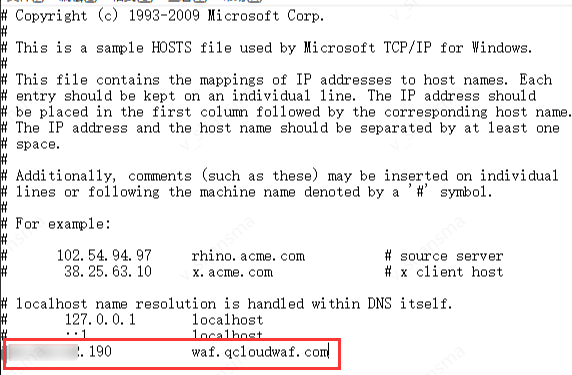
- Modify
/etc/hostson Linux and add entries.
Format: VIP address + domain name connected to WAF.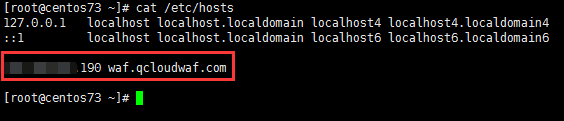
Perform an access test.
(1) Access the website on the local computer. If the website can be opened normally, it means that the line connectivity for WAF to access the web origin server is normal.
(2) Enter the following URL in the browser and access it.http://waf.qcloudwaf.com/?test=alert(123)
(3) If the browser redirects to the blocking page, it indicates that the WAF protection feature is normal.
Step 3: DNS Resolution Modification
To use WAF to protect the traffic of websites accessed by public network users, you need to modify the DNS resolution record. The necessary modification to the DNS CNAME record can be performed through the standard DNS modification procedure.
Step 4: Security Group Setting
A security group is a firewall at the instance level provided by the cloud platform that can control the inbound or outbound traffic of any CVM. By setting the security group to permit only traffic from WAF to access the website, attackers can be prevented from bypassing WAF and directly attacking the origin server of the website.
The following example describes the configuration process by allowing the origin-pull IP address 111.230.27.90 of WAF in the security group.
Log in to the CVM console. In the left directory, click Security Group.
Enter the Security Group page, click Create, fill in the information according to the requirements, select Custom for the template, enter the name of the security group (for example, my-security-group), fill in the relevant notes, and click OK after filling in.
In the security group list, find the created security group and click its ID to enter the details page.
On the Inbound Rules page, click Add Rule.
Fill in the relevant information in the pop-up box, select HTTP (80) as the type, fill in the origin-pull IP that requires allowance, input the port and policy as required, and click Finish after filling in.
Click Associated Instance in the tab, and click Add Association on the CVM page.
Select the CVM to be bound in the pop-up box and click OK.
You can also enter the CVM List page to view or modify the security group bound to a CVM. Select the CVM ID that requires security group adjustment on the list page, choose More > Security Group > Configure Security Group in the Operation column on the right side, and select the security group for binding.
CLB WAF
CLB WAF integrates with the layer-7 CLB (listener) cluster through domain name configuration to perform bypass threat detection and filtering on HTTP or HTTPS traffic transiting through the CLB and realize the separation of workload forwarding and security protection. To implement integrated protection, you need to complete the following steps:
Step 1: Confirming CLB Configuration
CLB WAF detects and intercepts HTTP or HTTPS traffic transiting through the CLB listener by adding a domain name and binding it to the CLB listener. Before accessing the CLB WAF, ensure that your website workload is already on the cloud platform and that the CLB (original application-type CLB with a public network type) is being used. If your website workload is not on the cloud platform, it is recommended that you use SaaS WAF for protection.
To enable CLB WAF to identify the protected domain name, you need to configure the CLB and configure the corresponding domain name in the listener to achieve normal workload forwarding.
This document takes the protection of wow.qcloudwaf.com as an example to view the CLB listener configuration information.
- Log in to the cloud console, click Cloud Product > Cloud Computing and Network > CLB to enter the CLB console.
- In the LB Instance List, find the created CLB instance, and click Instance ID to enter the CLB details page.
- On the CLB Details page, click Listener Management to view the listener domain name configuration information. The listener name is waftest, the protocol is HTTP, and the port is 80.
- When you create a forwarding rule, set the domain name listened by the listener forwarding rule to
wow.qcloudwaf.com, fill in "/" for the URL path, select whether to perform monitoring check and session maintenance, and click Submit to complete the domain name addition. At this point, the domain name protection status is Not Enabled.
Step 2: Adding a Domain Name and Binding It to CLB
Operation Steps
- Log in to the WAF console. In the left sidebar, select Asset Center > Access Management to enter the Domain Name Access page.
- On the Domain Name Access page, click Add Domain Name, enter the Add Domain Name page, and select CLB Type.
- On the Add Domain Name page, fill in the domain name to be protected, select the listener information according to the location of the domain name, configure the proxy situation, and confirm to complete the access.
Note:
The domain name filled in should be consistent with the added domain name in the CLB listener.
Step 3: Verification Test
Ensure that the local computer can access websites normally.
Enter the URL
http://wow.qcloudwaf.com/?test=alert(123)and access it in the browser.Note:
wow.qcloudwaf.com is the domain name in this case. Replace the domain name with the actual added domain name.
Log in to the WAF console. In the left sidebar, select Log Service > Attack Logs to enter the Attack Log Query page and perform a log query.
Select the domain name added for protection, and click Query. If you see the attack type is "XSS attack", it means the WAF configuration has taken effect.
Note:
If DNS is not configured for the domain name, see Step 2: Local Test in SaaS WAF Quick Start to verify the access validity.