

CLB WAF integrates with the layer-7 CLB (listener) cluster through domain name configuration to perform bypass threat detection and filtering on HTTP or HTTPS traffic transiting through the CLB and realize the separation of workload forwarding and security protection. To implement integrated protection, you need to complete the following steps:
Step 1: Confirming CLB Configuration
CLB WAF detects and intercepts HTTP or HTTPS traffic transiting through the CLB listener by adding a domain name and binding it to the CLB listener. Before accessing the CLB WAF, ensure that your website workload is already in the tenant's VPC and that the CLB (original application-type CLB with a public network type) is being used.
If your website workload is not using CLB, it is recommended that you use SaaS WAF for protection.
To enable CLB WAF to identify the protected domain name, you need to configure the CLB and configure the corresponding domain name in the listener to achieve normal workload forwarding.
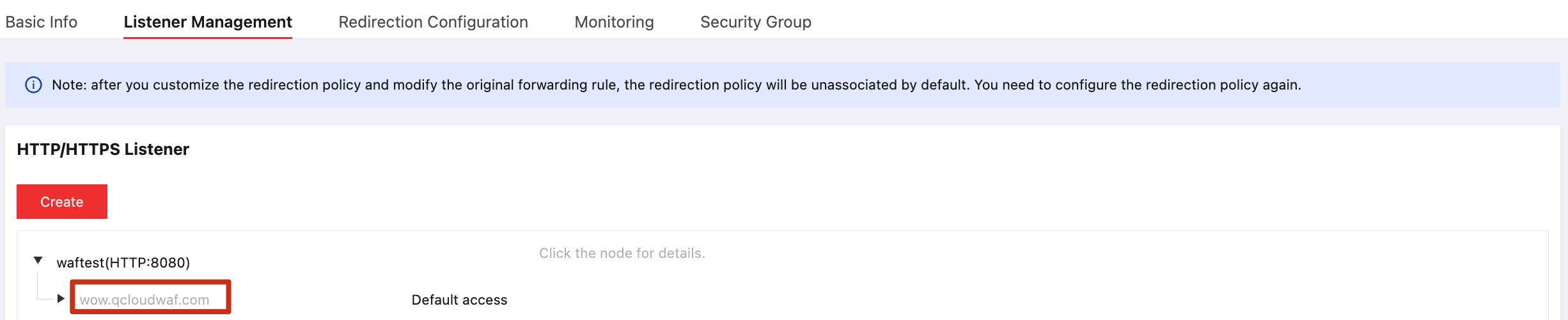
This document takes the protection of wow.qcloudwaf.com as an example to view the CLB listener configuration information.
- Log in to the tenant side console on the cloud platform, choose Cloud Product > Cloud Computing and Network > CLB to enter the CLB console.
- In the LB Instance List, find the created CLB instance clb-test, and click Instance ID to enter the CLB details page.
- On the CLB Details page, click Listener Management to view the listener domain name configuration information. The listener name is waftest, the protocol is HTTP, and the port is 80.
- When you create a forwarding rule, set the domain name listened by the listener forwarding rule to
wow.qcloudwaf.com, fill in "/" for the URL path, select whether to perform monitoring check and session maintenance, and click Submit to complete the domain name addition. At this point, the domain name protection status is Not Enabled.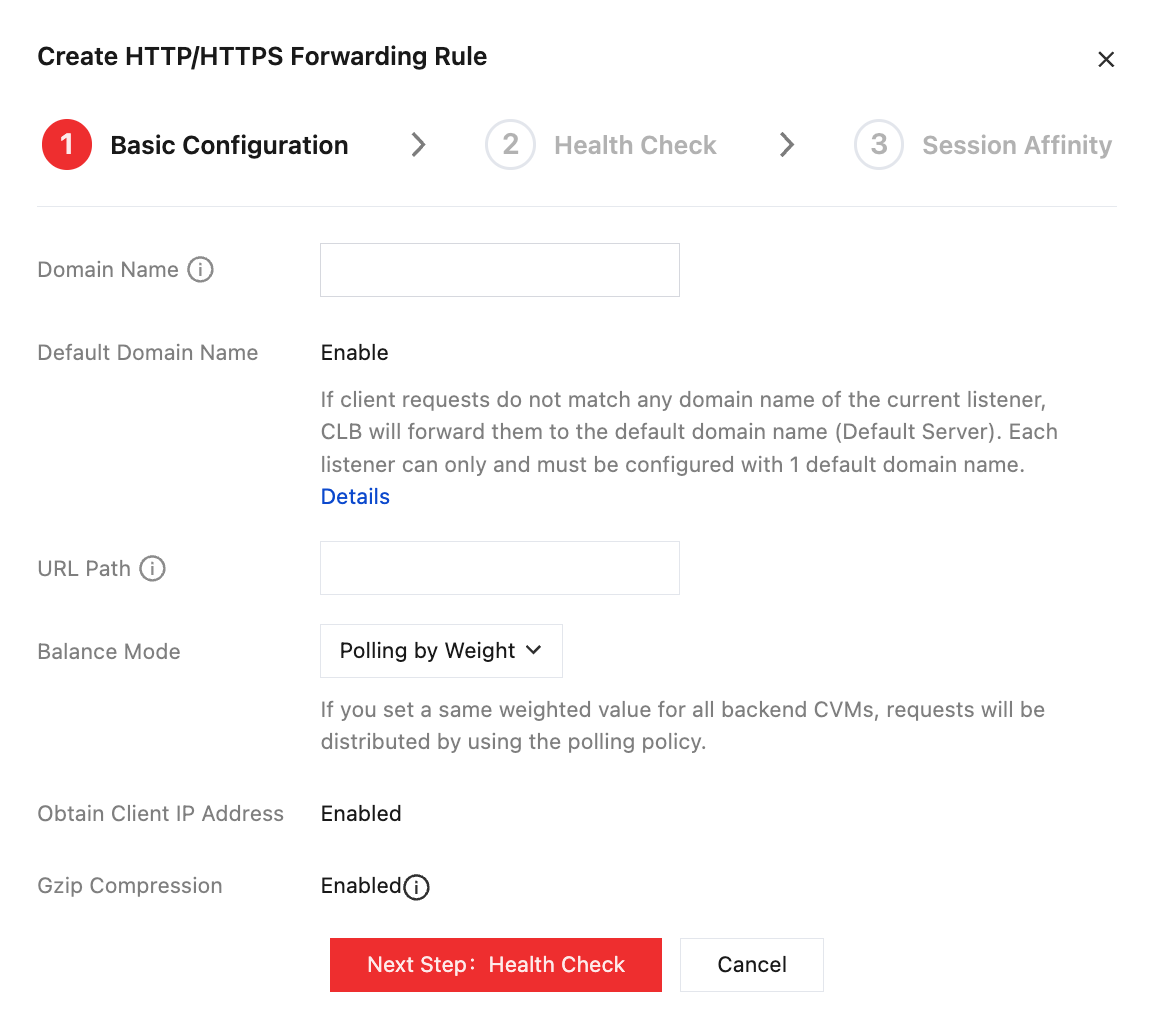
Step 2: Adding a Domain Name and Binding It to CLB
Log in to the WAF console. In the left sidebar, select Asset Center > Access Management to enter the Domain Name Access page.
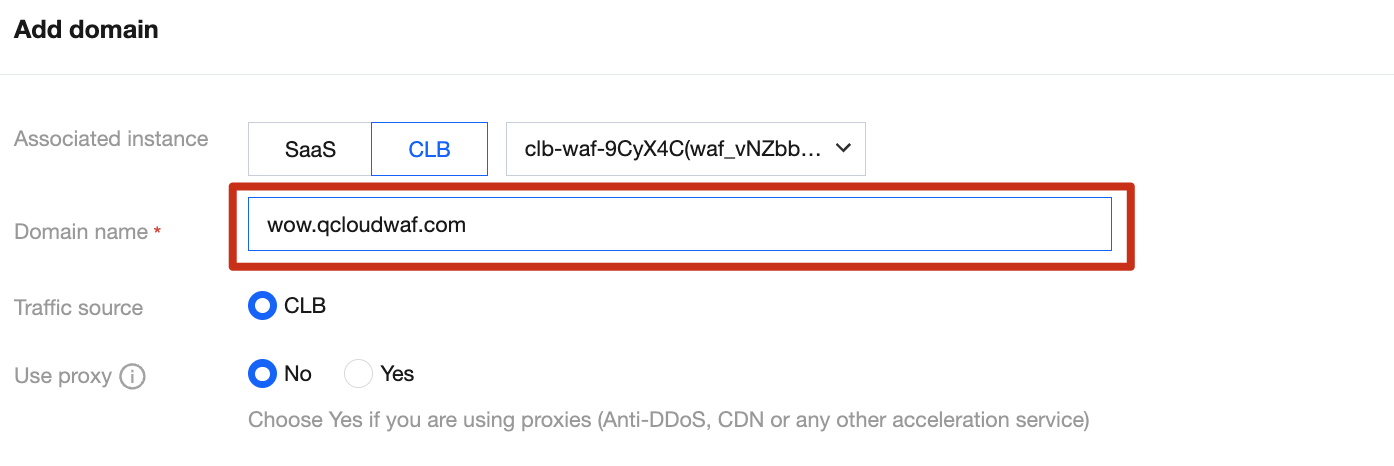
On the Domain Name Access page, click Add Domain Name, enter the Add Domain Name page, and select CLB Type.
On the Add Domain Name page, fill in the domain name to be protected, select the listener information according to the location of the domain name, configure the proxy situation, and confirm to complete the access.
Note:
The domain name filled in should be consistent with the added domain name in the CLB listener.
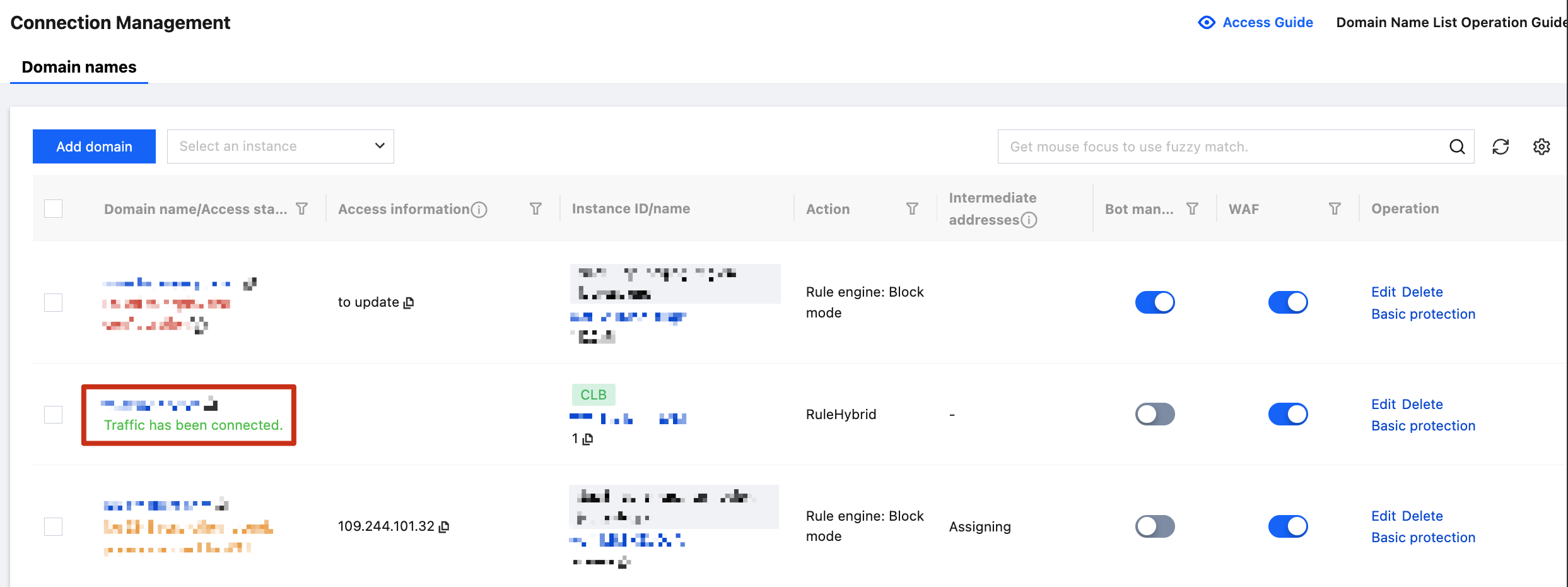
After binding, click Complete at the bottom of the page to return to the domain name list. In the domain name list, you can view the protected domain name wow.qcloudwaf.com and the CLB ID, name, VIP, and listener information of the CLB.

Step 3: Verification Test
Ensure that the local computer can access websites normally.
Enter the URL
http://wow.qcloudwaf.com/?test=alert(123)and access it in the browser.Note:
wow.qcloudwaf.com is the domain name in this case. Replace the domain name with the actual added domain name.
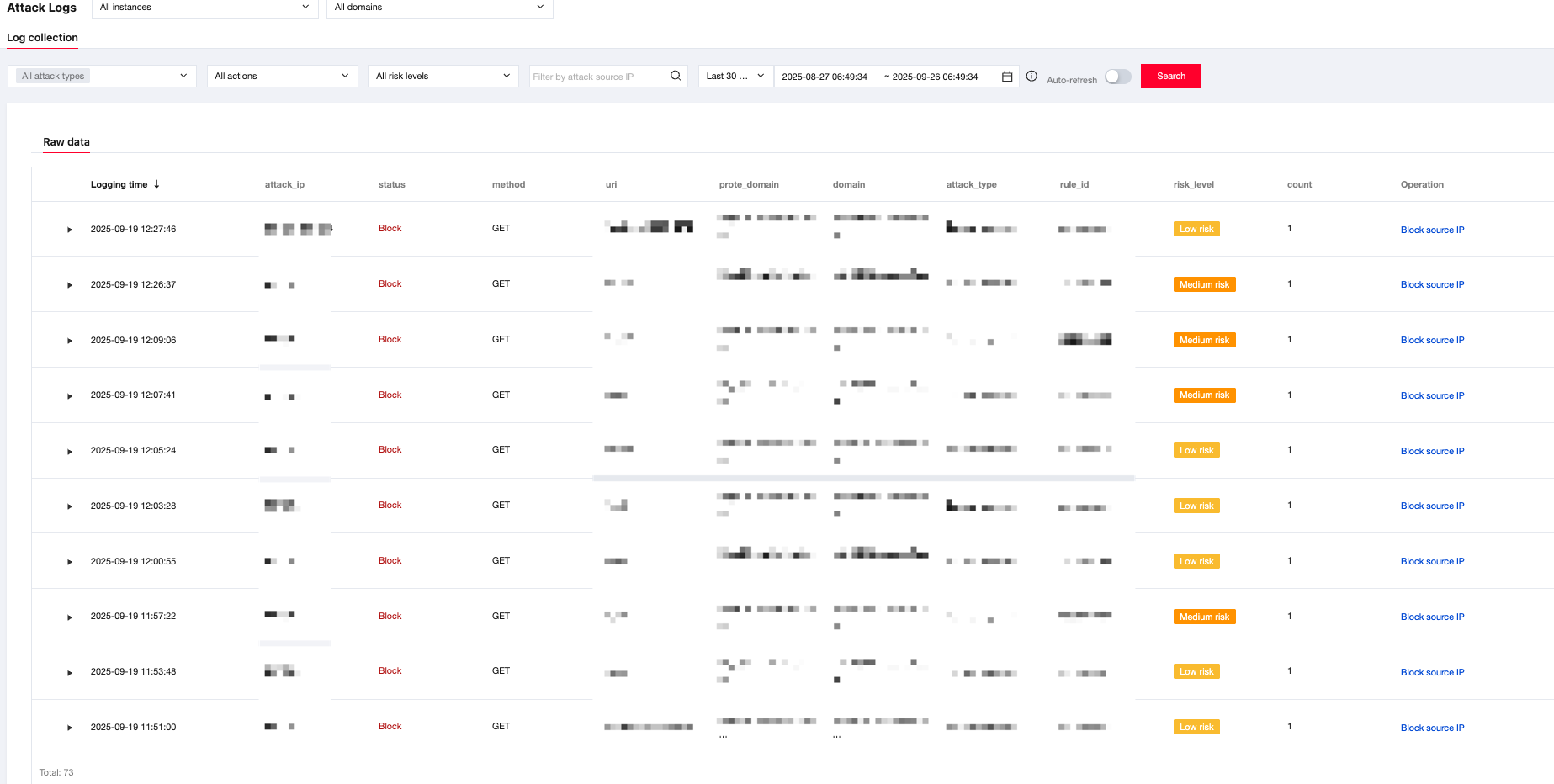
Log in to the WAF console. In the left sidebar, choose Log Service > Attack Logs to enter the Attack Log Query page and perform a log query.
Select the domain name added for protection, and click Query. If you see the attack type is "XSS attack", it means the WAF configuration has taken effect.
Note:
If DNS is not configured for the domain name, see Step 2: Local Test in SaaS WAF Quick Start to verify the access validity.
