

Adding an IP Address to the Allowlist
Manual Addition
- Log in to the WAF console. In the left sidebar, click Configuration Center > Blocklist/Allowlist to enter the Blocklist/Allowlist page.
- On the Blocklist/Allowlist page, select the domain name to be protected in the upper left corner and click IP Allowlist to enter the IP Allowlist page.

- On the IP Allowlist page, click Add Address to enter the Add to Allowlist page.
- On the Add to Allowlist page, configure related parameters and click OK.
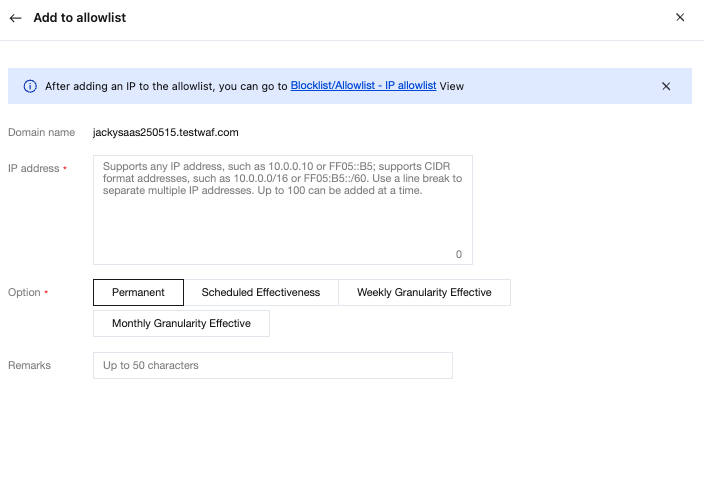
Parameter descriptionIP address: Support any IP address, such as 10.0.0.10 or FF05::B5; support CIDR format address, such as 10.0.0.0/16 or FF05:B5::/60. Use a line break to separate the addresses, and up to 20 addresses can be added at a time.
Description
- When the selected domain name is Global, the IP address or IP range will be added to the global allowlist.
Effective method: Permanently effective, regularly effective, effective on a monthly granularity period, and effective on a weekly granularity period.
Remarks: Customized within 50 characters.
Importing Data
- On the Blocklist/Allowlist page, select the domain name to be protected in the upper left corner and click IP Allowlist to enter the IP Allowlist page.
- On the IP Allowlist page, click Import Data > Import. After the data is parsed successfully, click Confirm Import.

Editing the IP Allowlist
- On the Blocklist/Allowlist page, select the domain name to be protected in the upper left corner and click IP Allowlist to enter the IP Allowlist page.
- On the IP Allowlist page, select the required IP address, click Edit in the operation column, modify the expiration time and remarks, and click OK to save.

Deleting an IP Address from the Allowlist
On the Blocklist/Allowlist page, select the domain name to be protected in the upper left corner and click IP Allowlist to enter the IP Allowlist page.
On the IP Allowlist page, you can delete a single address, partial addresses, or all addresses. Specific operations are as follows:
Single: Select a single IP address, click Delete address or Delete in the operation column, and a Confirm Deletion pop-up window will appear.
Description
The deleted IP address cannot be recovered. It should be re-added to take effect.

Partial: Select multiple IP addresses, click Delete Address, and a Confirm Deletion pop-up window will appear.
Description
The deleted IP address cannot be recovered. It should be re-added to take effect.

All: Click Delete All, and a Confirm Deletion pop-up window will appear.
Note
This operation will clear all IP blocklist/allowlist information under the current domain name. Proceed with caution. The deleted IP address cannot be recovered. It should be re-added to take effect.
In the Confirm Deletion pop-up window, click OK to delete the address.
Exporting All Filtered Results
- On the Blocklist/Allowlist page, select the domain name to be protected in the upper left corner and click IP Allowlist to enter the IP Allowlist page.
- On the IP Allowlist page, click the search box to filter IP addresses by IP Address, or click Source to filter IP addresses by source type.

- After the required IP addresses are filtered, click Export All Filtered Results to export the required IP filtering results.

