Overview
After you create a Linux instance, you can choose different log-in methods to connect and log in to the CVM instance based on the local operating system and whether there is a public IP.
Prerequisites
- You have obtained the administrator account and password (or key) for logging in to the instance.
- Administrator Account: The administrator account is different for different types of Linux instances.
- SUSE/CentOS/Debian: root
- ubuntu: ubuntu
- Password log-in.
- If you set an automatic password when purchasing an instance, you can log in to the Converge Cloud console and click the message icon in the upper right corner to enter the site message page, which will contain the CVM log-in administrator account and initial password.
- If you selected a custom password, the password is the password you specified when you purchased the CVM instance.
- Key log-in.
- If you choose key log-in when purchasing an instance, please remember the absolute path where the key is stored locally.
- If you forget the password or key for logging into the CVM, see Reseting the Instance Password or Creating SSH Keys to perform a reset.
The CVM port 22 has been opened: You can check the network connectivity through to check whether port 22 is open. If the port is not open, you can set inbound/outbound rules for the port when configuring security groups.
Remote Log-in to Instances Using VNC
VNC log-in is a way we provide for users to remotely connect to the CVM through a web browser. Users can log in to the CVM via VNC, track the status of the CVM. And through the CVM account, basic management operations on the CVM can be performed.
Applicable Local Operating System
Windows, Linux and Mac OS
Use Limits
- If you log in the Cloud Virtual Machine via VNC, the CVM currently does not support copy and paste, as well as file upload and file download.
- When you log into the CVM via VNC, you need to use a major browser, such as Chrome, Firefox, IE 10 and above.
- VNC log-in is a dedicated remote terminal, meaning that only one user can log in to the current CVM via VNC at any given time.
Prerequisites
You have obtained the administrator account and password (or key) for logging in to the instance.
Directions
- Log in to the CVM Console.
- In the instance list, select the Linux CVM you want to log in to and click Log In.
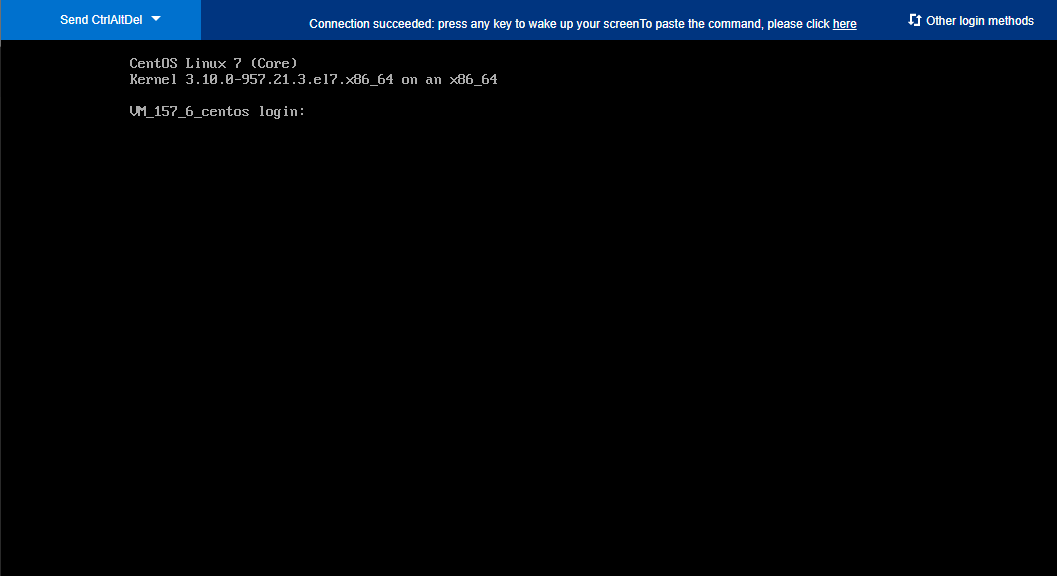
- In the pop-up dialog box, enter your user name and password to complete the log-in. As shown below: