

Creating an SSL Server
- Click SSL Server to enter the SSL server interface.
- Click Create, configure parameters in the pop-up Create SSL Server dialog box, and click Create.
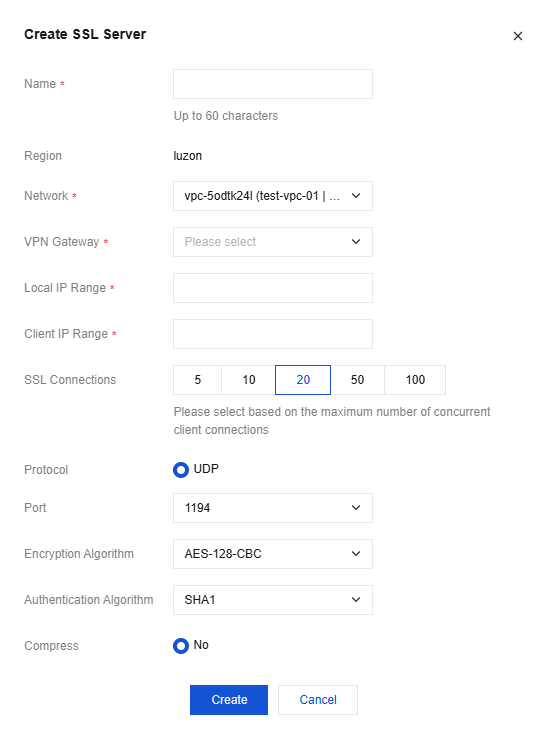
Parameter Description- Network: Select a Virtual Private Cloud to create the VPN connection.
- VPN gateway: Select the SSL VPN Gateway created in Step 4.
- Local IP range: Fill in the local IP range of the server. The IP range must be within the Virtual Private Cloud CIDR range.
- Client IP range: Fill in the client IP range. Only private address segments 10, 172, and 192 are supported. The mask range is 16-24, which cannot overlap with the VPC IP range.
- Number of SSL connections: Select the number of SSL connections.
- The protocol, port, encryption algorithm, authentication algorithm, and compression parameter values are shown in the figure and cannot be modified for the moment.
Querying an SSL server
Supports fast search by SSL server name or ID.
- Enter the SSL Server management interface.
The channel list shows all SSL server information. - In the upper right corner of the SSL server list, use the search box to query SSL servers.
- (Optional) Click Display Column Settings next to the search box to set the SSL server parameters to be displayed.
- Click the SSL server ID to enter the Basic Information interface and query details of the SSL server.
Deleting an SSL server
You can delete the SSL servers that are no longer used from the list.
- Enter the SSL Server management interface.
- Find the SSL server to be deleted in the SSL server list, and then click Delete in the Operation column.
- Click OK in the Confirm Deletion dialog box.