

Creating a VPN Gateway
Overview
The VPN gateway is an important part of a VPN connection. This section mainly introduces how to create a VPN gateway through the console.
Directions
- Log in to the Virtual Private Cloud VPC console, select VPN Connection > VPN Gateway in the left navigation bar to enter the VPN gateway management interface.
- Click Create and the Create VPN Gateway dialog box pops up.
- Set parameters according to the gateway type.
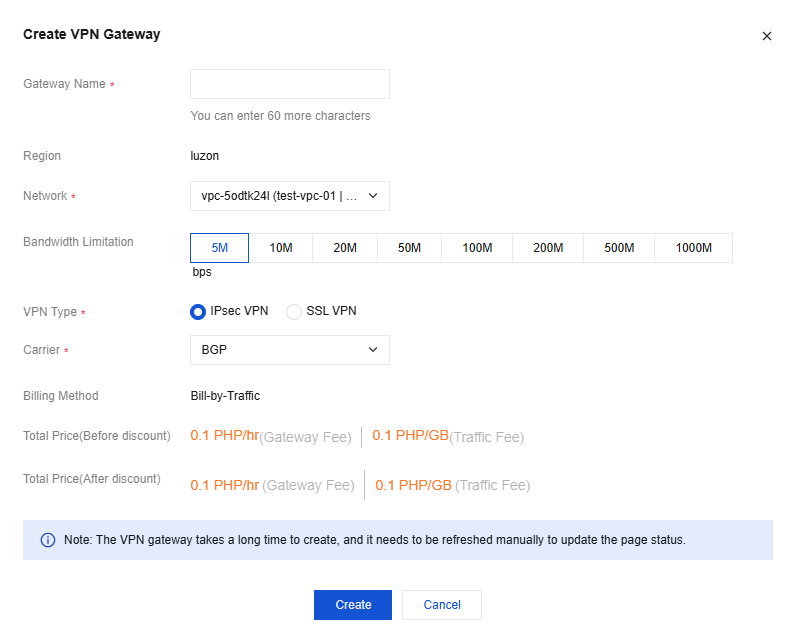
- IPsec VPN
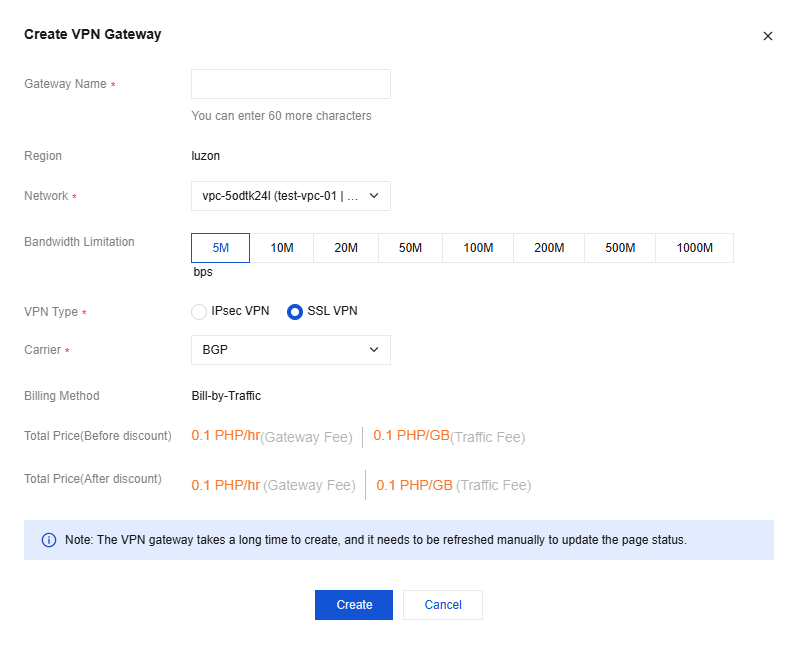
- SSL VPN
- IPsec VPN
Parameter description:
- Gateway name: Customize the gateway name.
- Network: Select the Virtual Private Cloud to which the VPN gateway belongs.
- Bandwidth limit: The system supports bandwidths of 5M, 10M, 20M, 50M, and 100M. Select a bandwidth as needed.
- VPN type: Select IPsec VPN or SSL VPN.
- Operator: This parameter is displayed only when VPN Type is IPsec VPN. Select an operator as needed.
- With gateway parameters set, click Create to start task creation. When the Status column displays Running, the creation is successful.
Querying a VPN Gateway
Operational Scenario
The VPN Gateway management interface displays all created VPN gateways. You can view gateway details and monitoring information by entering a specific gateway. The system also supports quick search by VPN gateway name or ID.
Directions
- Enter the VPN Gateway management interface to query all VPN gateway information, one gateway instance per entry.
- Click the gateway ID to enter the Basic Information interface and query details and routing policy of the gateway.
- Click the Monitoring tab. The interface will display the gateway's metric information, including External outbound bandwidth, Public Network Inbound Bandwidth, Packet Outbound Quantity, and Incoming Packet Volume. You can also enter the metric display interface through the VPN Gateway interface.
 .
.
Field description:- Real-time: You can view current metrics.
- Recent 24 hours: You can view metrics of the past 24 hours.
- Recent 7 days: You can view metrics of the past 7 days.
- Select date: You can customize the time period of querying metrics.
- Data comparison: You can view the comparison of real-time data at two moments.
 : The method of displaying metrics can be changed.
- Click the upper right
 to set the display parameters of the interface.
 - Enter the VPN gateway name or ID in the search box at the upper right to quickly search for gateway instances.
 .
. : The method of displaying metrics can be changed.
 to set the display parameters of the interface.
Deleting a VPN Gateway
Operational Scenario
You can delete VPN gateway instances that have not established a connection. Gateway instances that are in preparation or have already established VPN connections cannot be deleted.
Directions
- On the VPN Gateway management page, click Delete on the right side of the gateway instance to be deleted.
- In the pop-up Confirmation dialog box, click OK to complete the deletion operation.