

Creating VPN Tunnel
- Log in to the cloud platform and select Cloud Products > Cloud Computing & Networking > Virtual Private Cloud to enter the Virtual Private Cloud console.
- In the directory on the left, click VPN Connection > VPN Tunnel to enter the VPN Channel interface.
- Select a region and Virtual Private Cloud, and click Create.

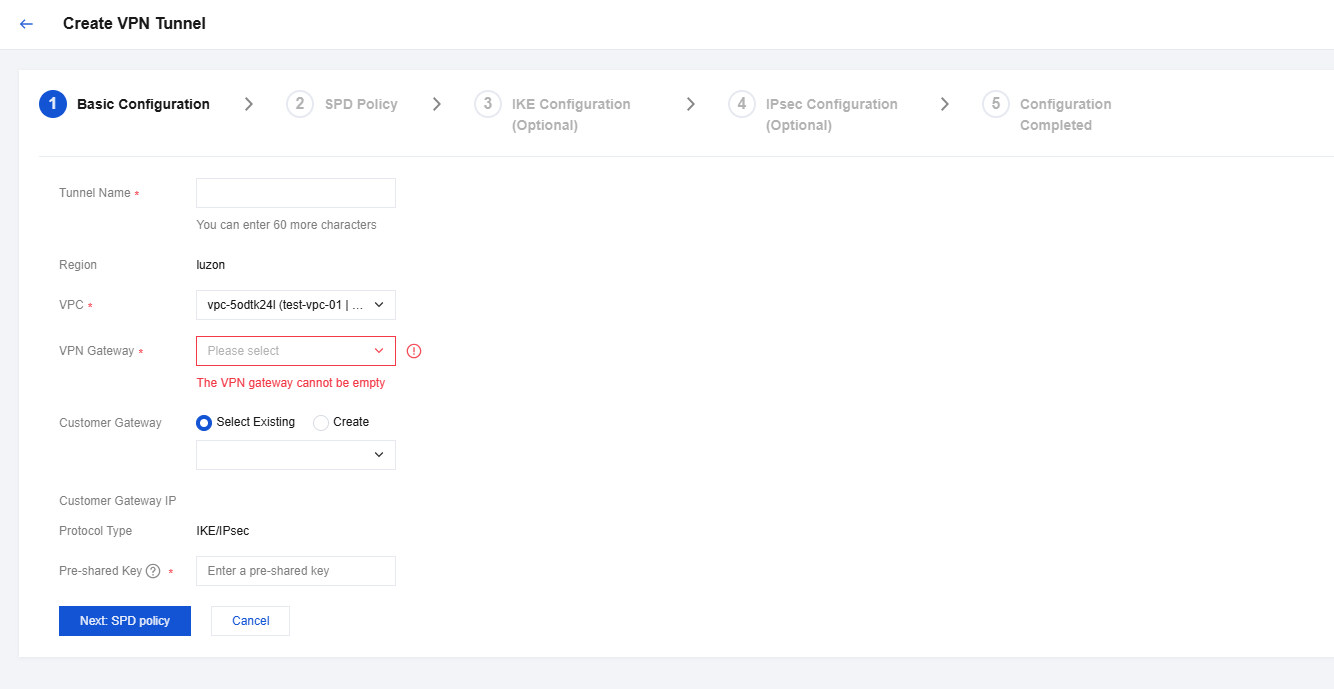
- Enter the tunnel name (for example, TomVPNConn), select TomVPNGw as the VPN gateway and TomVPNUserGw as the customer gateway, enter the pre-shared key (for example, 123456), and click Next: SPD Policy.
- Enter the SPD policy to match the local IP range with the customer IP rang. In this example, the local IP range is the IP range 192.168.1.0/24 of subnet A, and the customer IP range is 10.0.1.0/24. Click Next: IKE Configuration.
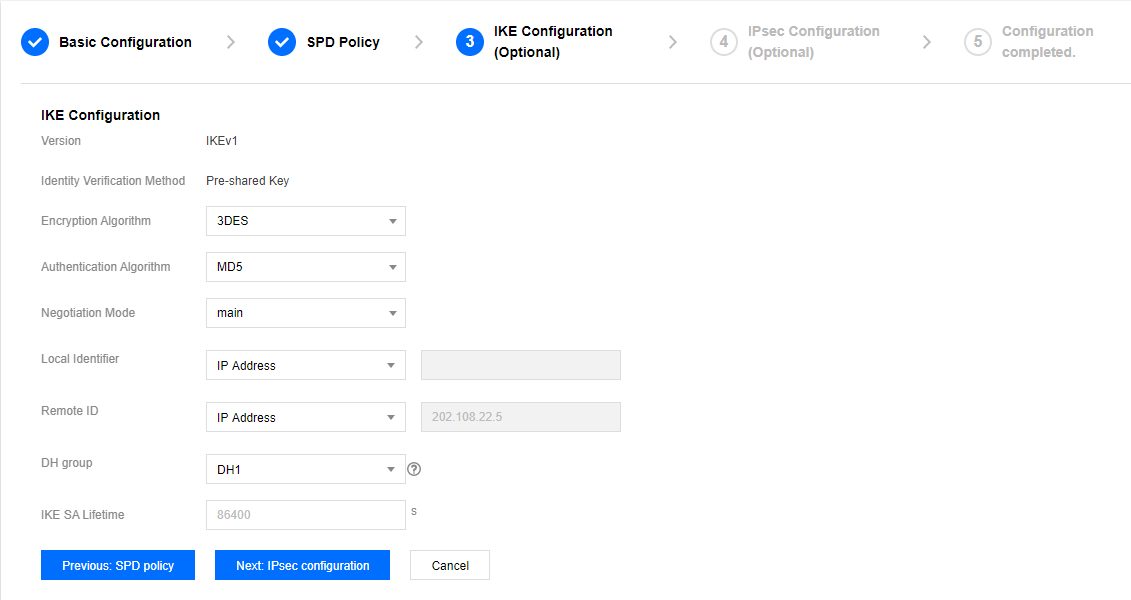
- (Optional) Configure IKE parameters. If advanced configuration is not required, click Next: IPsec Configuration.
- (Optional) Configure IPsec parameters. If no configuration is required, click Next: Complete Configuration. After it is created, return to the VPN channel list page, click Download Configuration File to download the file.
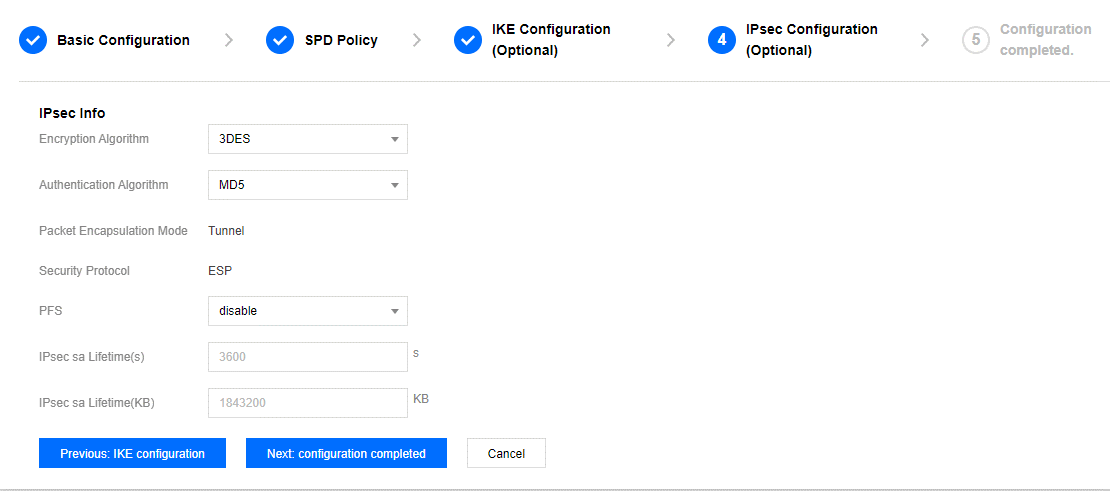
- After successful creation, return to the VPN channel list page, click Download Configuration File to download the file.

Querying a VPN Channel
The VPN channel management interface displays all created VPN channels. Entering a specific channel allows you to view gateway details and monitoring information. The system also supports quick search by VPN channel name or ID.
- Enter the VPN Channel management interface.
The channel list displays all VPN channel information, one channel instance per entry. - Query the VPN channel in the search box in the upper right corner of the channel list.
- (Optional) Click Display Column Settings next to the search box to set the channel parameters to be displayed.
- Click the Channel ID to enter the Basic Information interface and view channel details.
- Click the Monitor tab, and the interface will display the metrics of the network channel, including the public network outbound bandwidth, public network inbound bandwidth, outbound packet volume, and inbound packet volume. You can also view it by clicking the monitoring icon on the VPN Tunnel interface.
Deleting a VPN Channel
You can delete VPN channels that are no longer used from the tunnel list.
- Enter the VPN Channel management interface.
- Find the VPN channel to be deleted in the channel list, and then click Delete in the Operation column.
- Click OK in the Confirm Deletion dialog box.